
How to track time with the timer in YakTimer
Starting a timer when you begin work is the most accurate way to capture billable hours. YakTimer records the start and end for you and files the entry under the project and task you pick.
Before you start
- At least one project and task
Preview voice Narrated with a local preview voice; the final recording replaces it.
Transcript
Start a timer when you begin work, and YakTimer records the hours for you.
On Record Time, choose the project and the task you're about to work on.
Optionally, add a short note. It's saved with the entry and helps when you review the week.
Select Clock in. The badge changes to Clocked in and the timer starts counting.
When you finish, select Clock out. The entry is saved and shows at the top of Recent time.
Steps
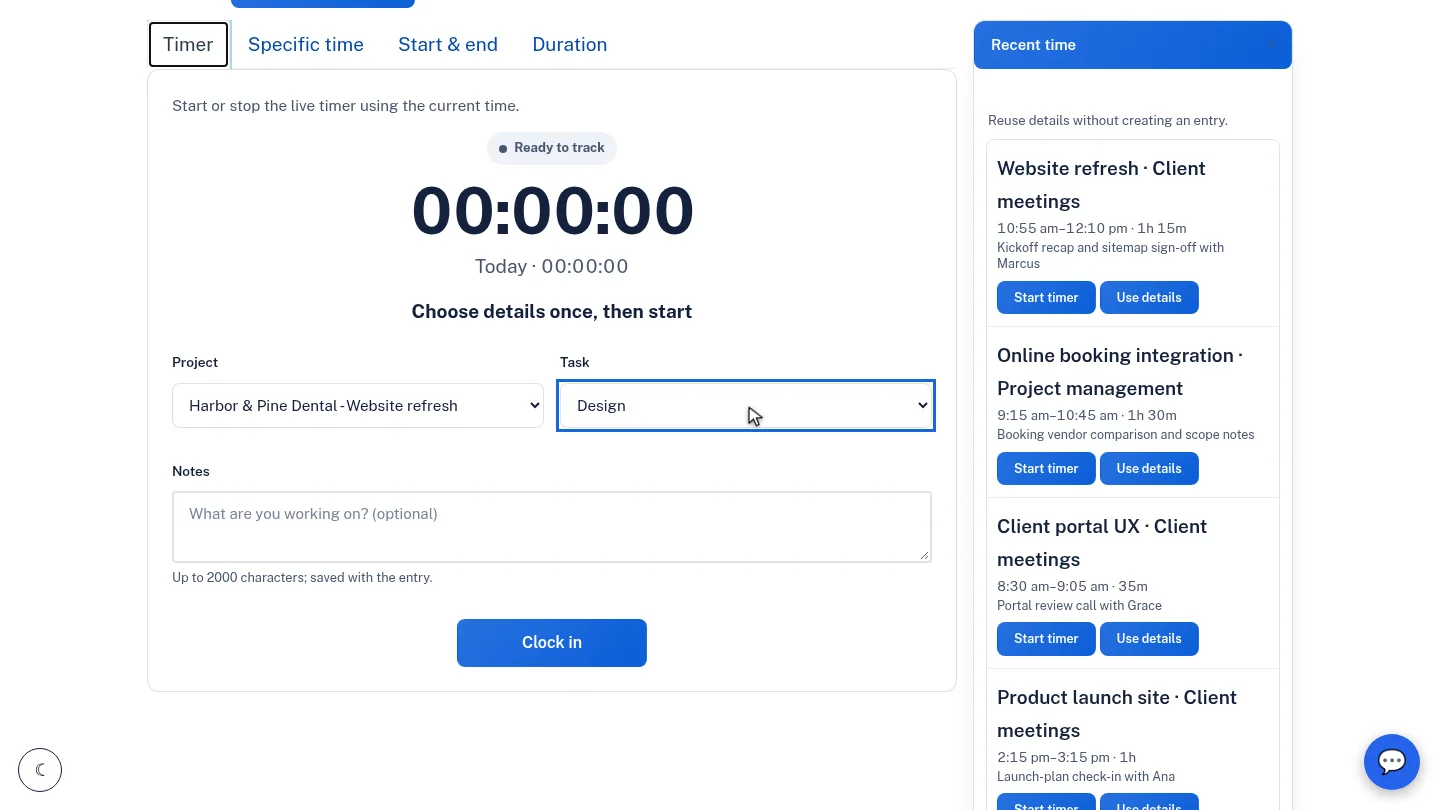
Choose what you're working on ▶ 0:06
In Track, on Record Time, choose a Project and a Task.
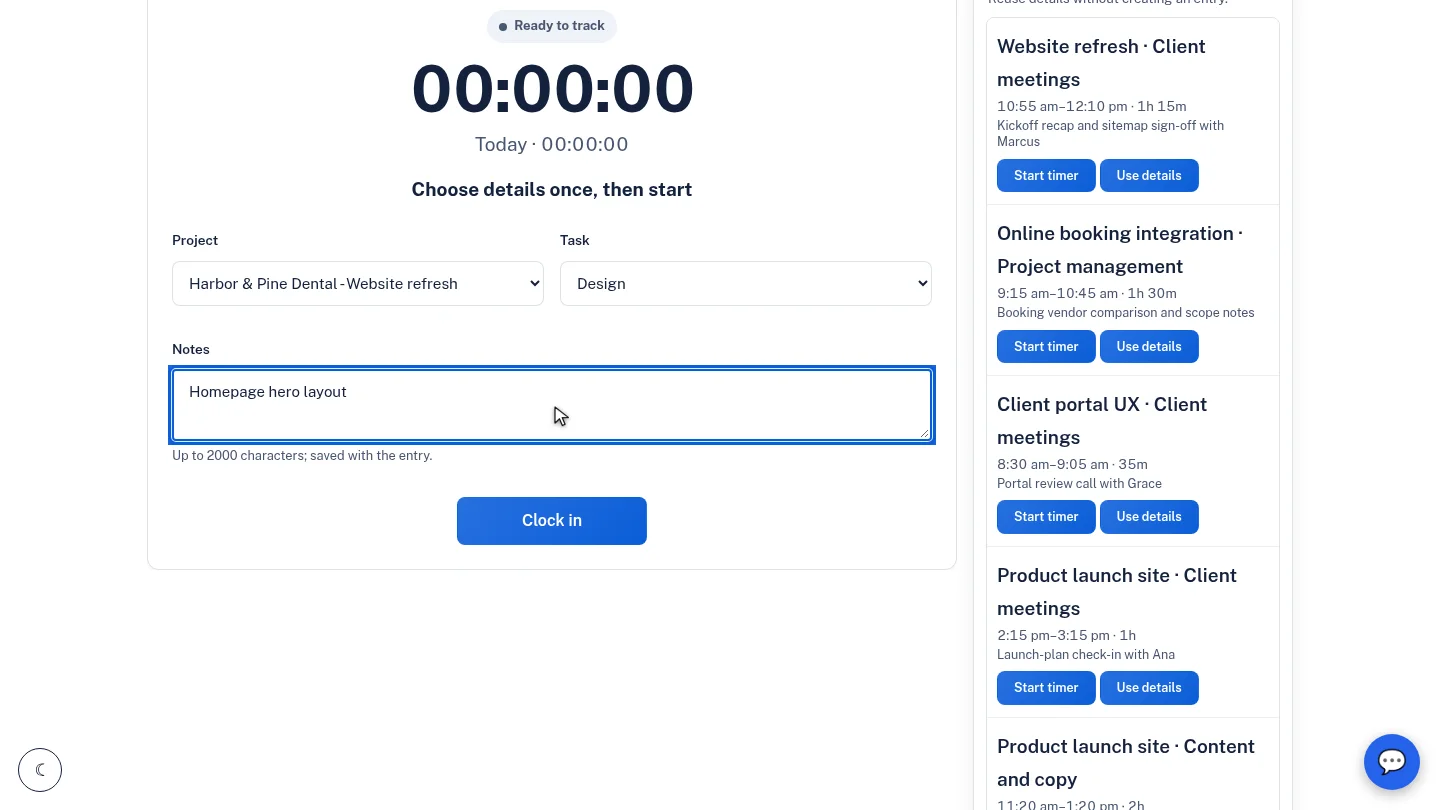
Optional: add a note ▶ 0:12
Optional: Under Notes, describe the work.
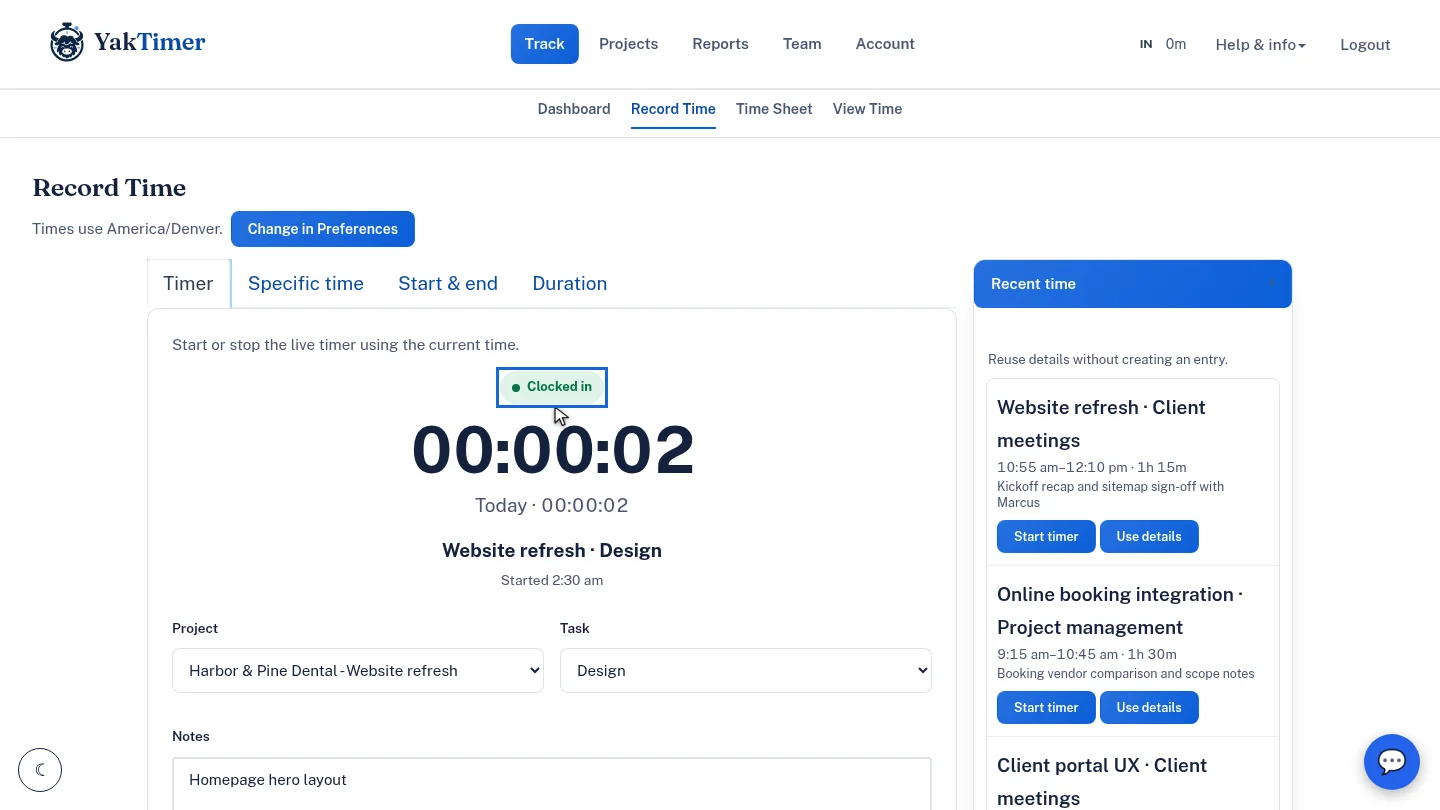
Start the timer ▶ 0:19
Select Clock in. The status changes to Clocked in and the timer counts up.
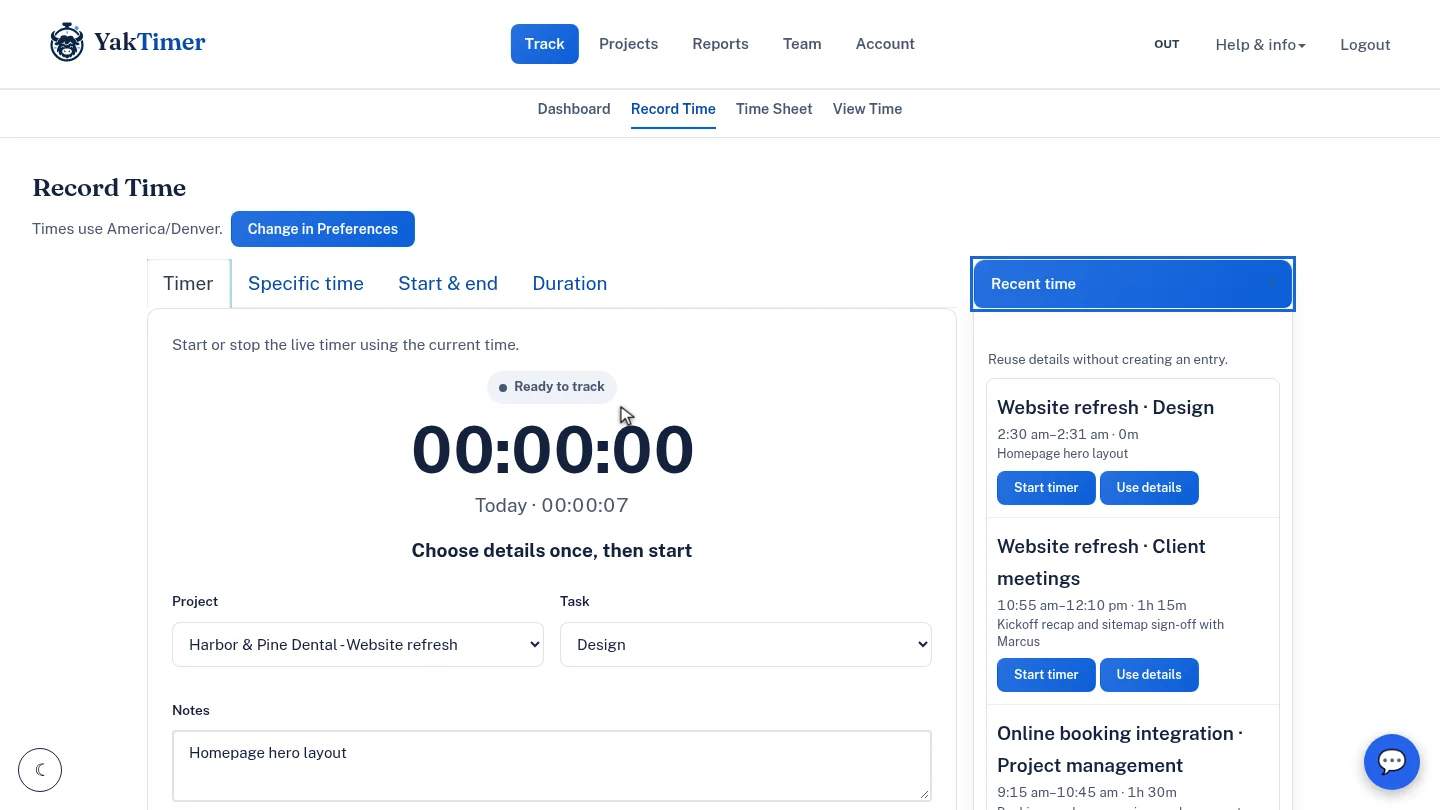
Stop the timer ▶ 0:25
When you finish, select Clock out. The entry appears under Recent time.
Next steps
Updated 2026-10-26
start timer stopwatch clock in clock out live timer punch in