
How to add time after the fact in YakTimer
Forgot to start the timer? Record the hours as a duration instead. You enter how long you worked and on which day, and YakTimer adds a complete entry.
Before you start
- At least one project and task
Preview voice Narrated with a local preview voice; the final recording replaces it.
Transcript
Missed the timer? Add the hours you worked as one complete entry, on the right day.
On Record Time, open the Duration tab, and type how long you worked, for example one hour thirty.
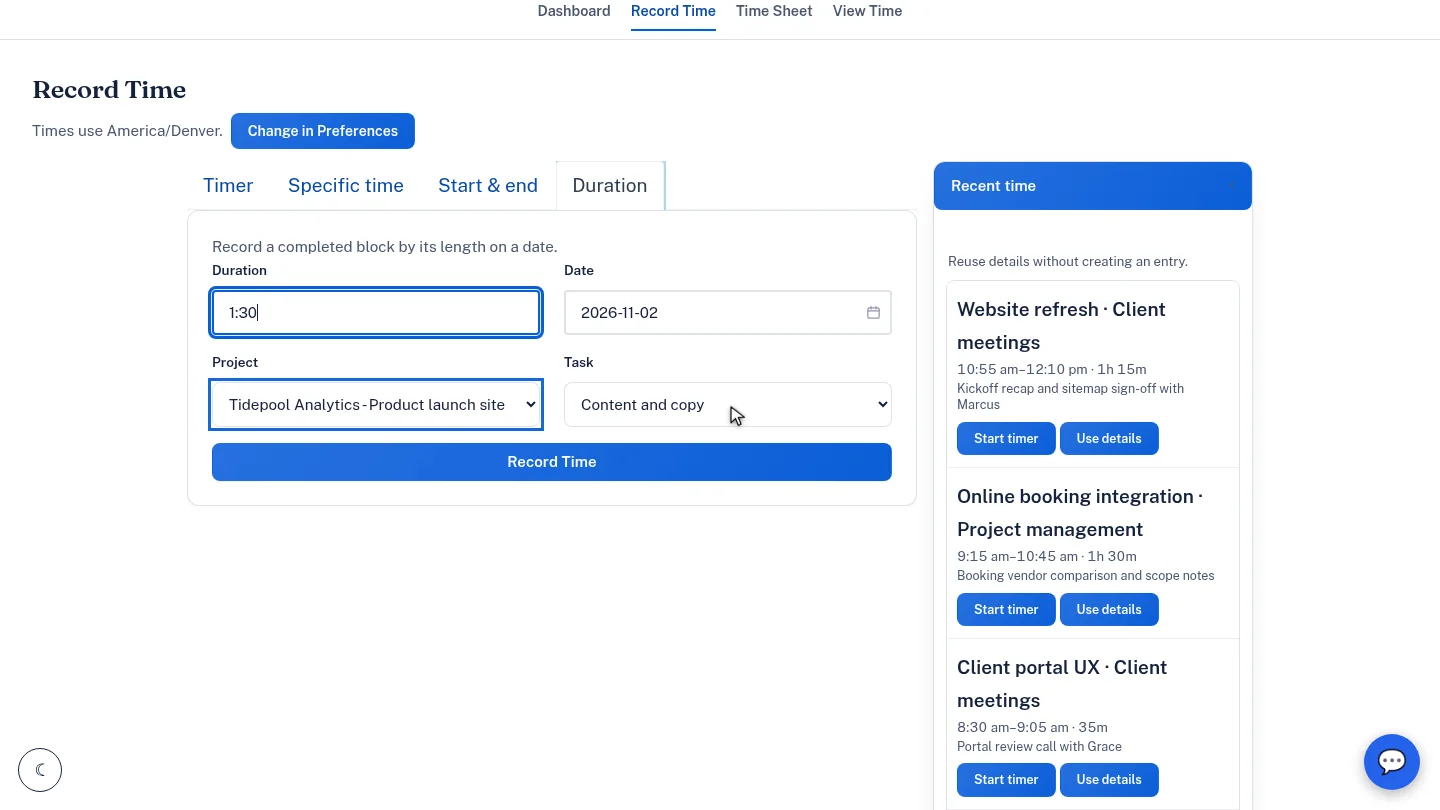
Check the date, then choose the project and task, here Product launch site, Content and copy.
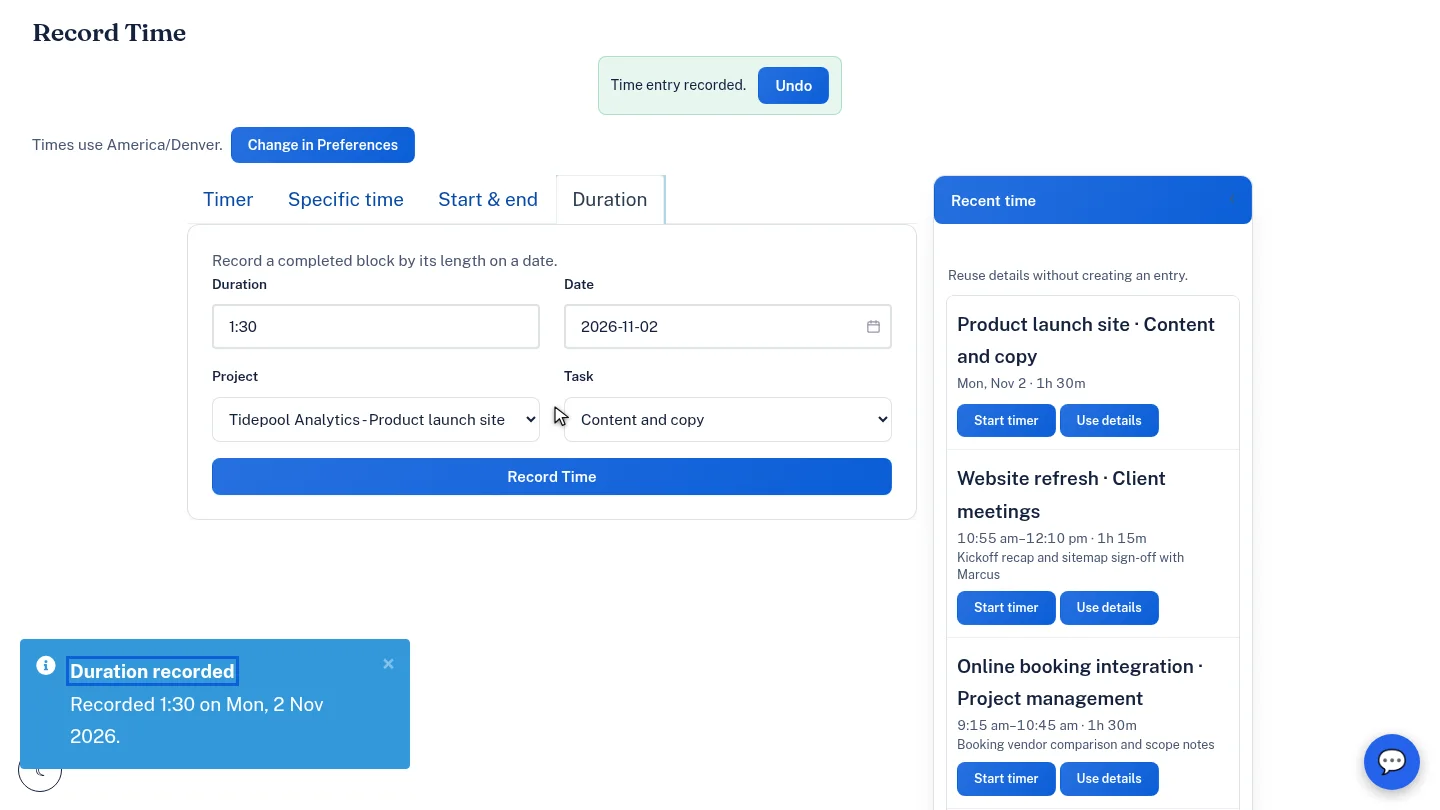
Select Record Time. A Duration recorded message confirms the entry, and Undo is there for a moment if you picked the wrong project.
Steps
Enter how long you worked ▶ 0:07
In Track, on Record Time, select Duration, then enter the time, such as
1:30,4hor30m.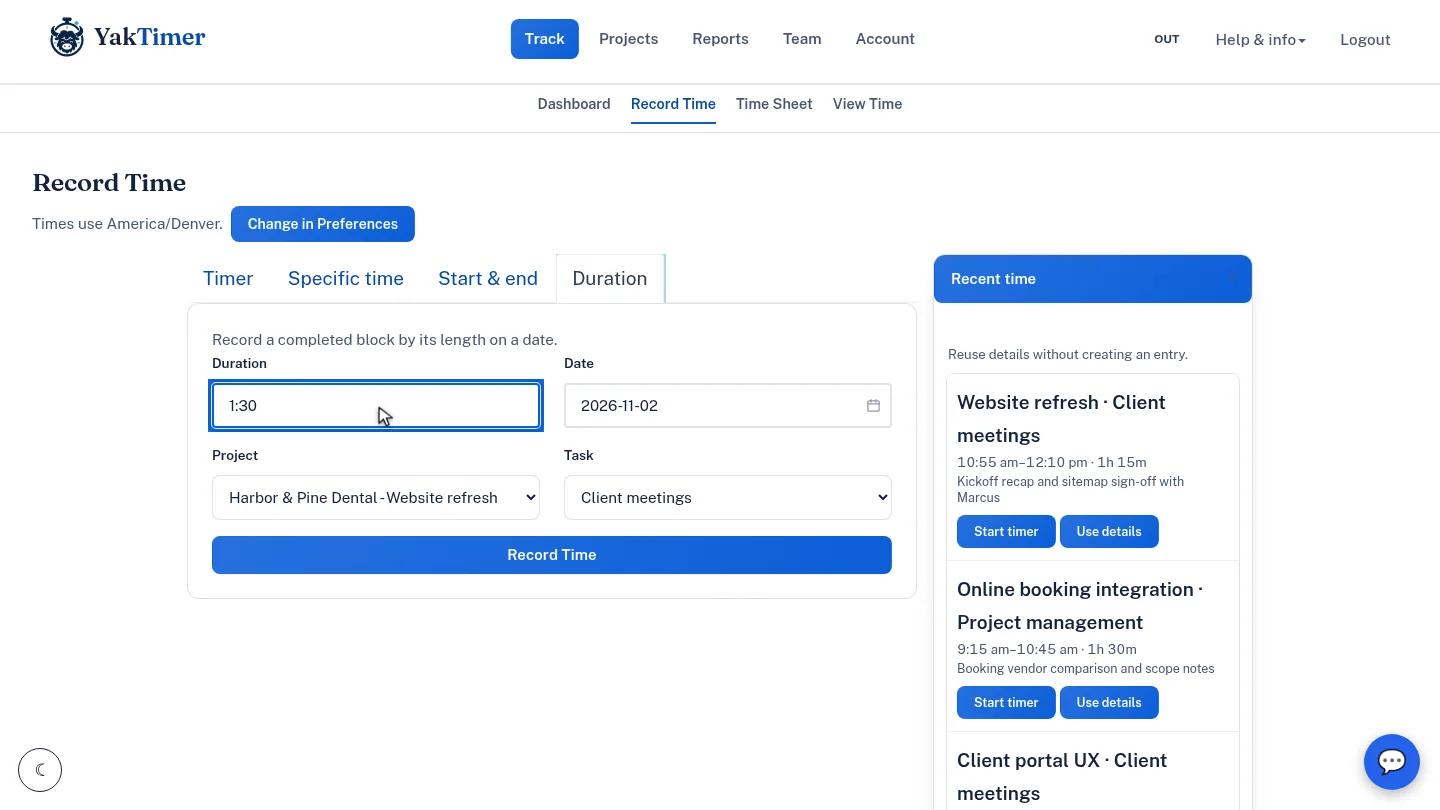
Choose the day, project and task ▶ 0:14
Check the Date, then choose a Project and a Task.
Record it ▶ 0:21
Select Record Time. Duration recorded confirms the entry. Select Undo straight away to remove it.
Next steps
Updated 2026-10-26
manual time entry log hours add hours missed timer timesheet entry