
How to edit a time entry in YakTimer
Started the timer late or forgot to stop it? Fix the entry's start or end time so the hours you bill match the hours you worked.
Before you start
- A time entry that isn't on an invoice or in an approved week
Preview voice Narrated with a local preview voice; the final recording replaces it.
Transcript
Correct an entry's start or end time so your hours are accurate.
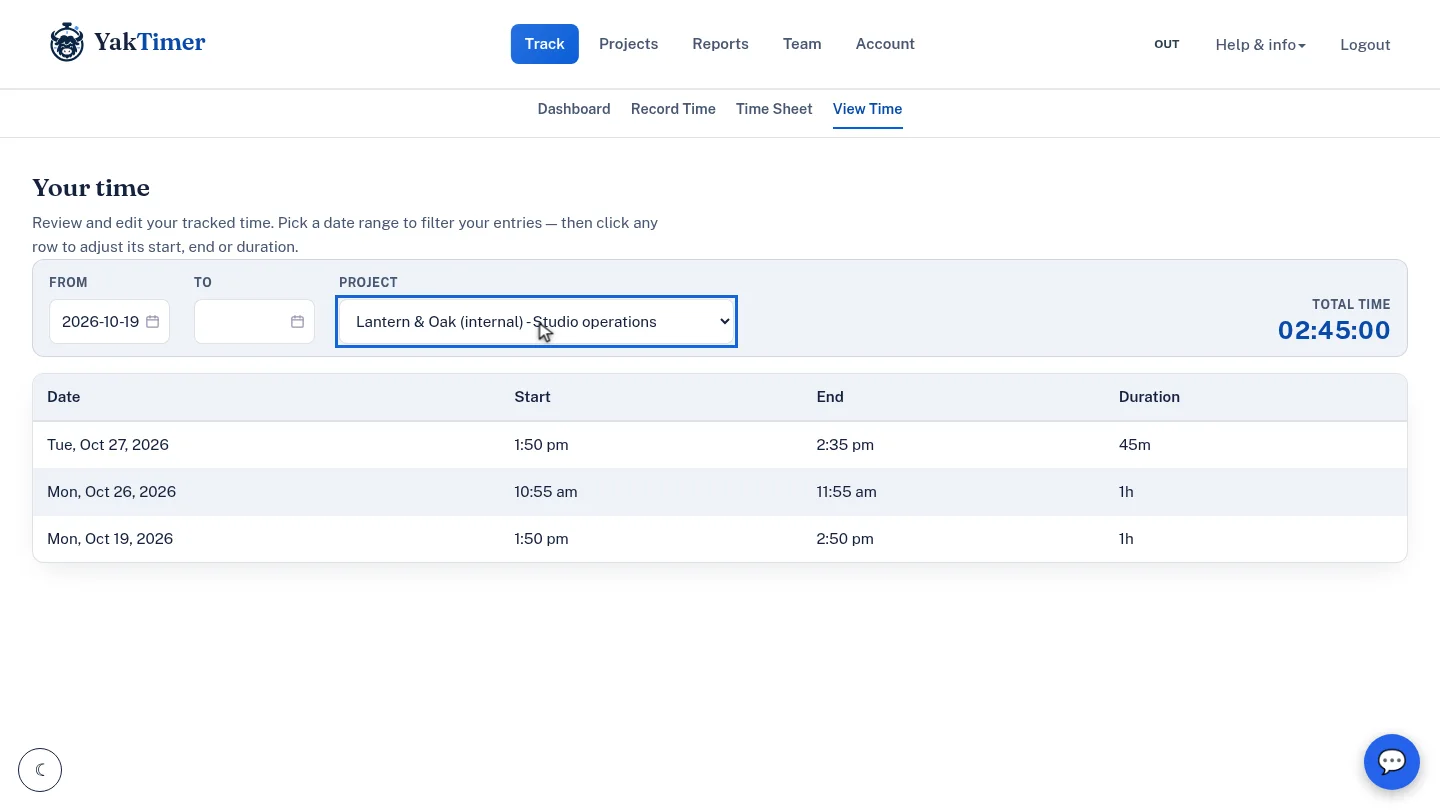
Under Track, open View Time. Set the From date back far enough to include the entry, then narrow the list to one project, so it's easy to spot.
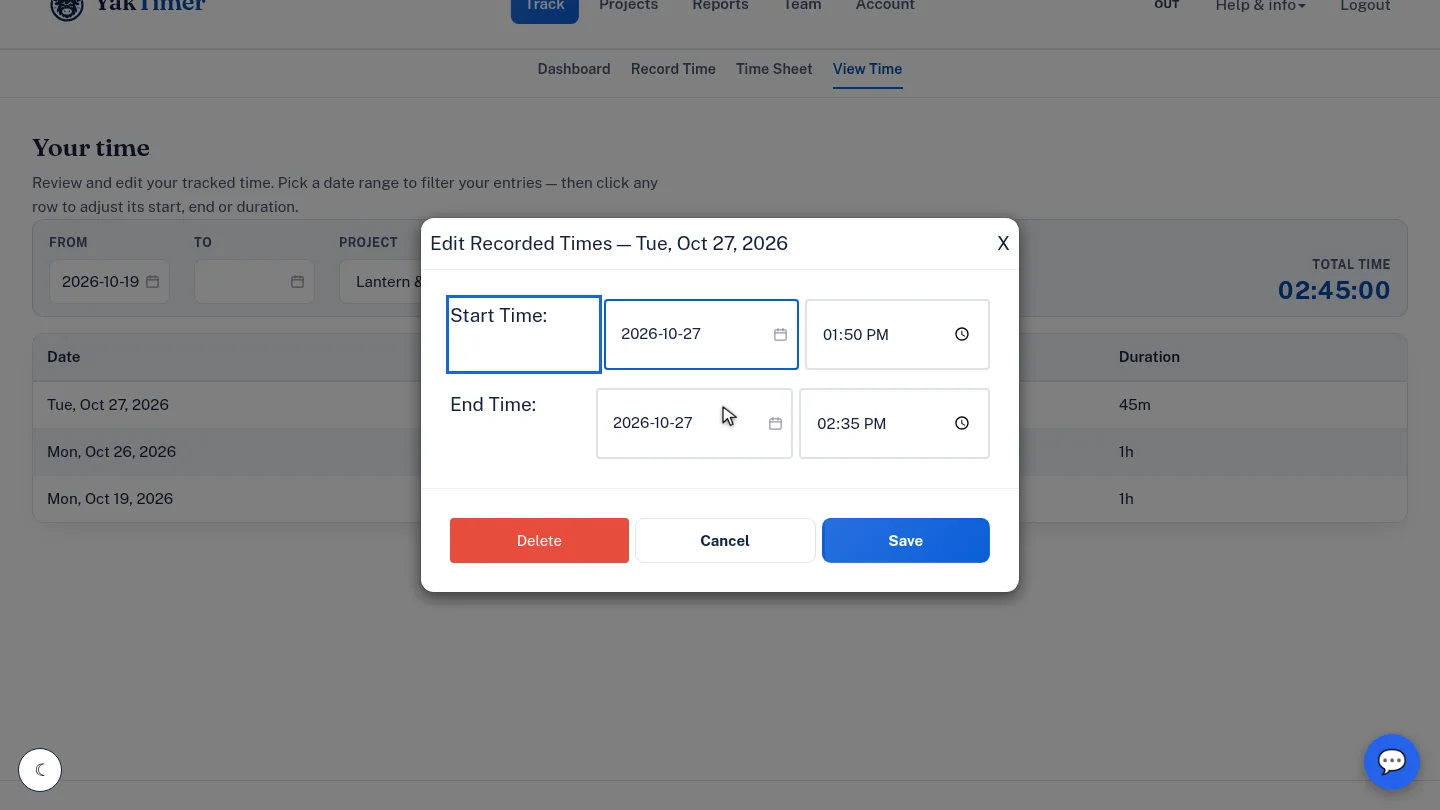
Select the entry. The Edit Recorded Times window opens with its start and end.
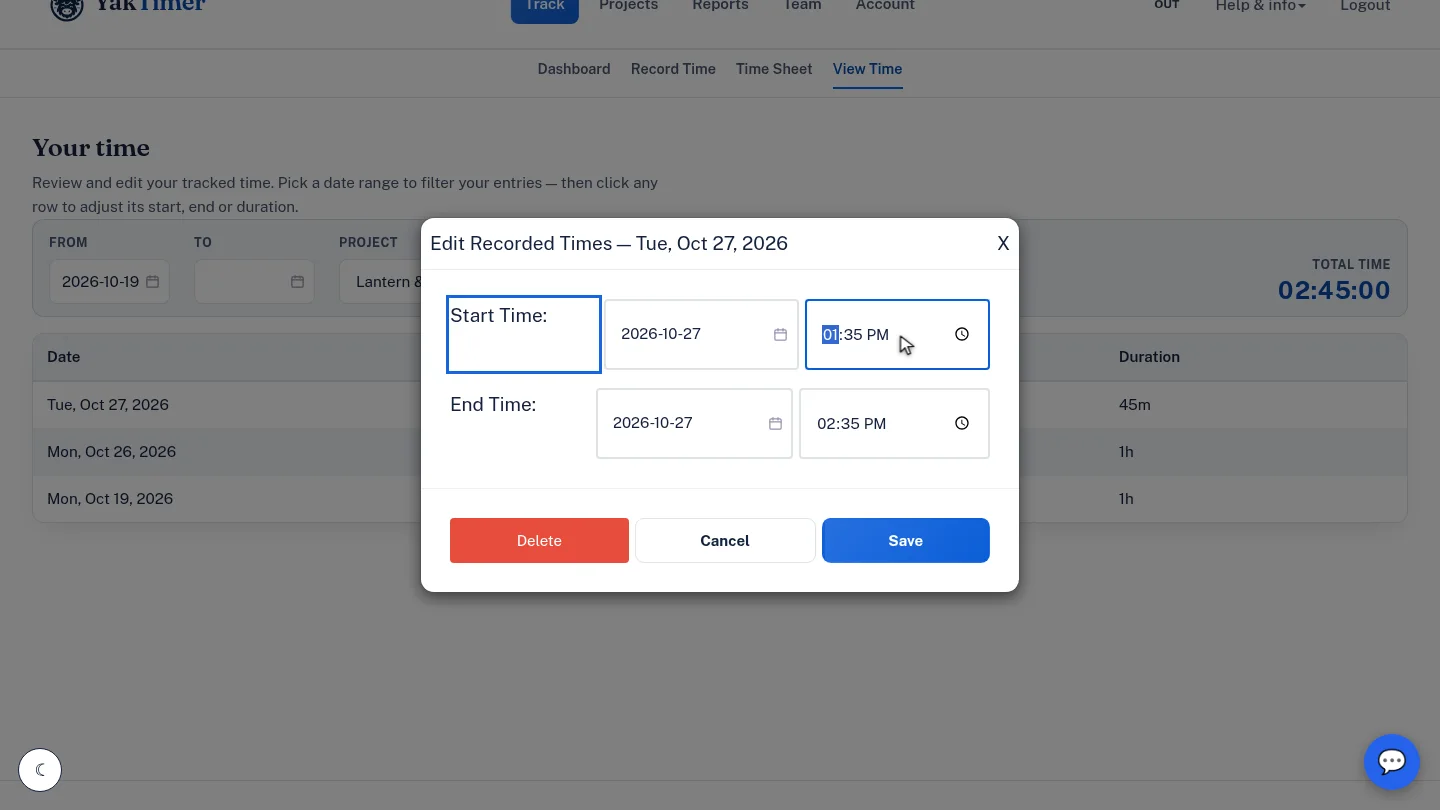
Change the start or end time. Here the start moves fifteen minutes earlier, because work began before the timer did.
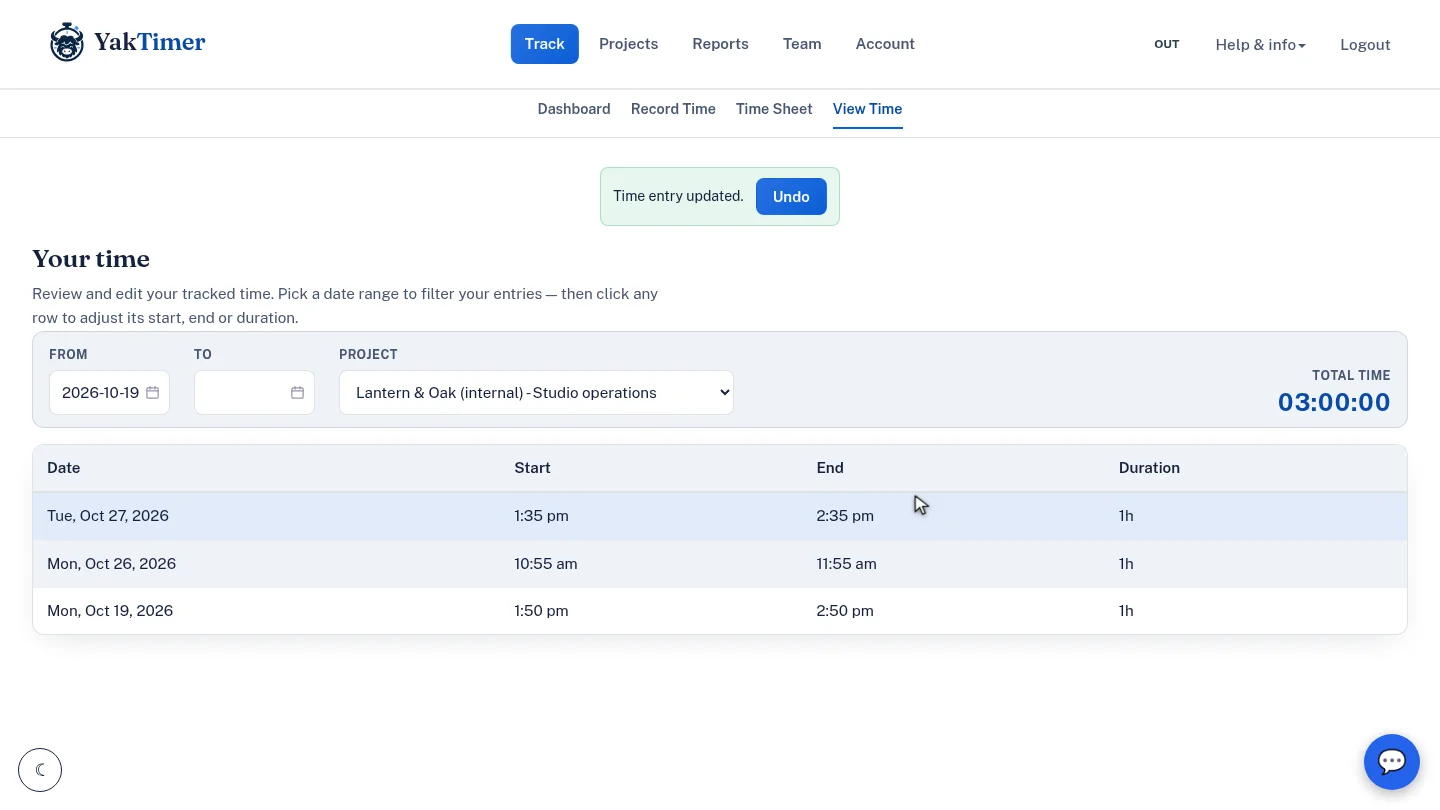
Select Save, then Yes to confirm. The entry updates in Your time, with its new start and a longer duration.
Steps
Find the entry ▶ 0:05
In Track, select View Time. Set From to a date before the entry, and choose a Project to narrow the list.
Open the entry ▶ 0:16
Select the entry's row. Edit Recorded Times opens.
Change the time ▶ 0:22
Change the time next to Start Time: or End Time:.
Save and confirm ▶ 0:31
Select Save, then select Yes. The row shows the new start time and duration.
Next steps
Updated 2026-11-02
change time entry fix hours correct timesheet adjust start time edit hours