
How to record an invoice payment in YakTimer
When a client pays by bank transfer or cheque, record it against the invoice. The balance drops to zero and the invoice is marked paid, so your outstanding totals stay accurate.
Before you start
- The admin or owner role
- A sent invoice with a balance
Preview voice Narrated with a local preview voice; the final recording replaces it.
Transcript
Mark a client's invoice as paid when their payment arrives.
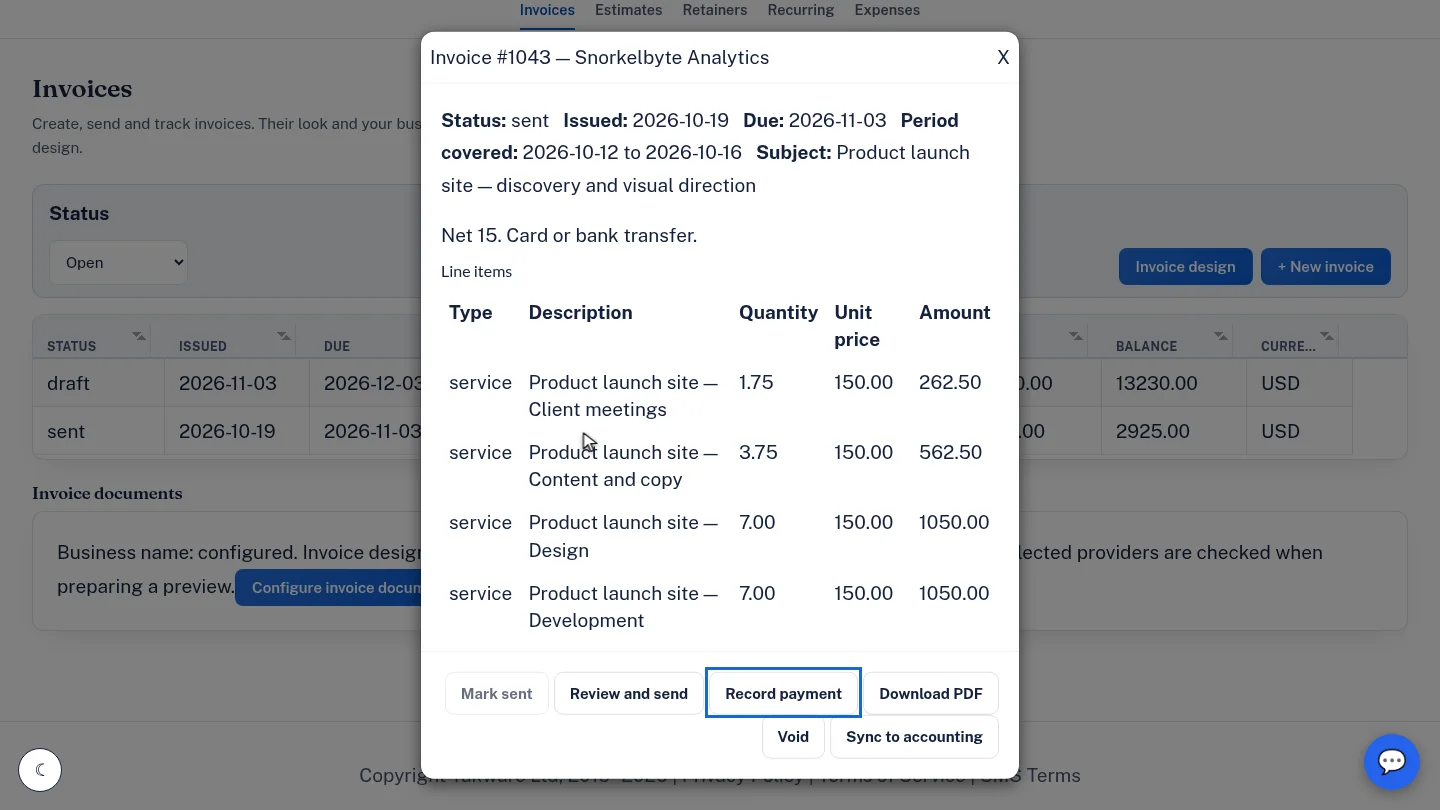
Under Invoicing, select the client's invoice. Here it's Snorkelbyte Analytics, sent and awaiting payment.
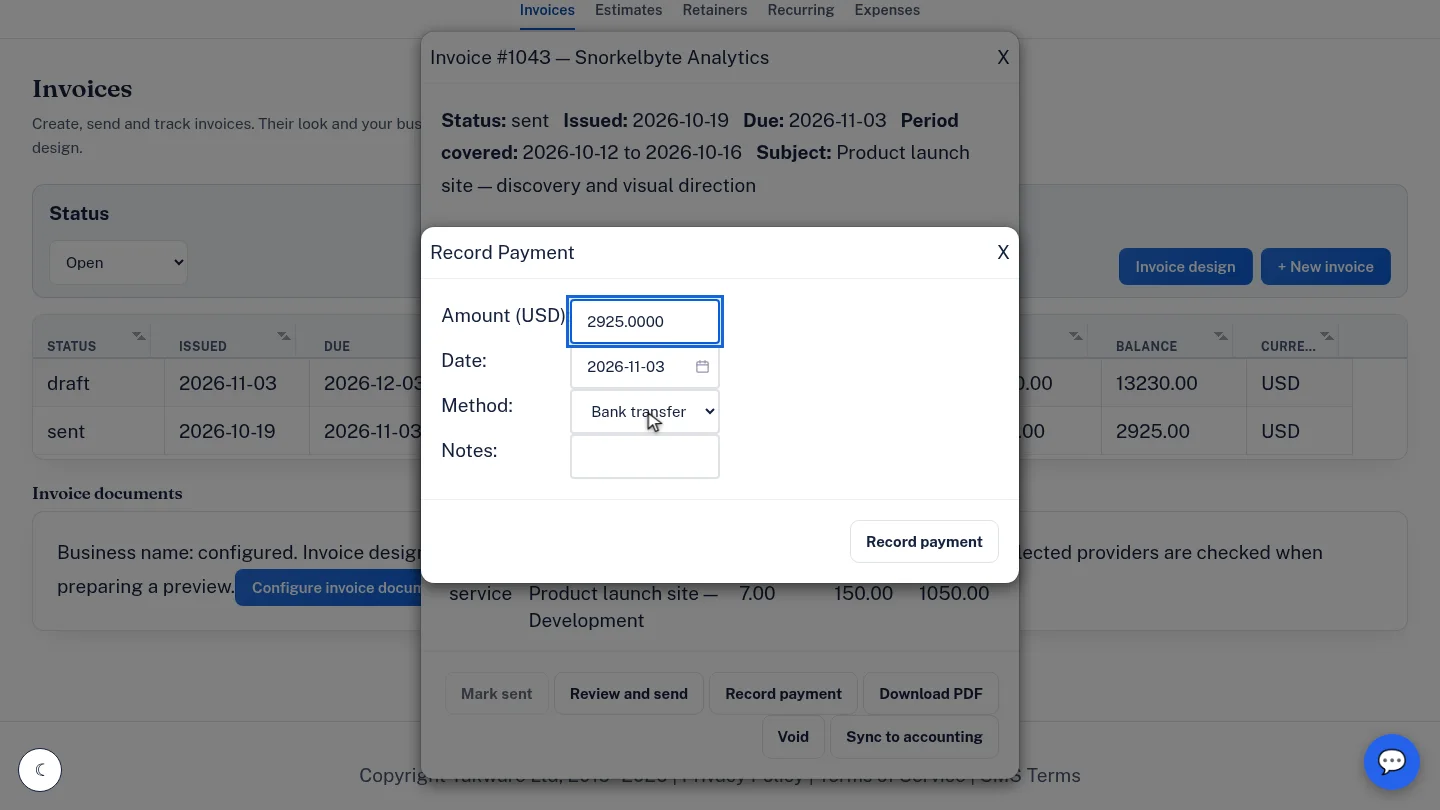
Select Record payment. The amount is already the balance due. Choose how they paid, and add a note if you like.
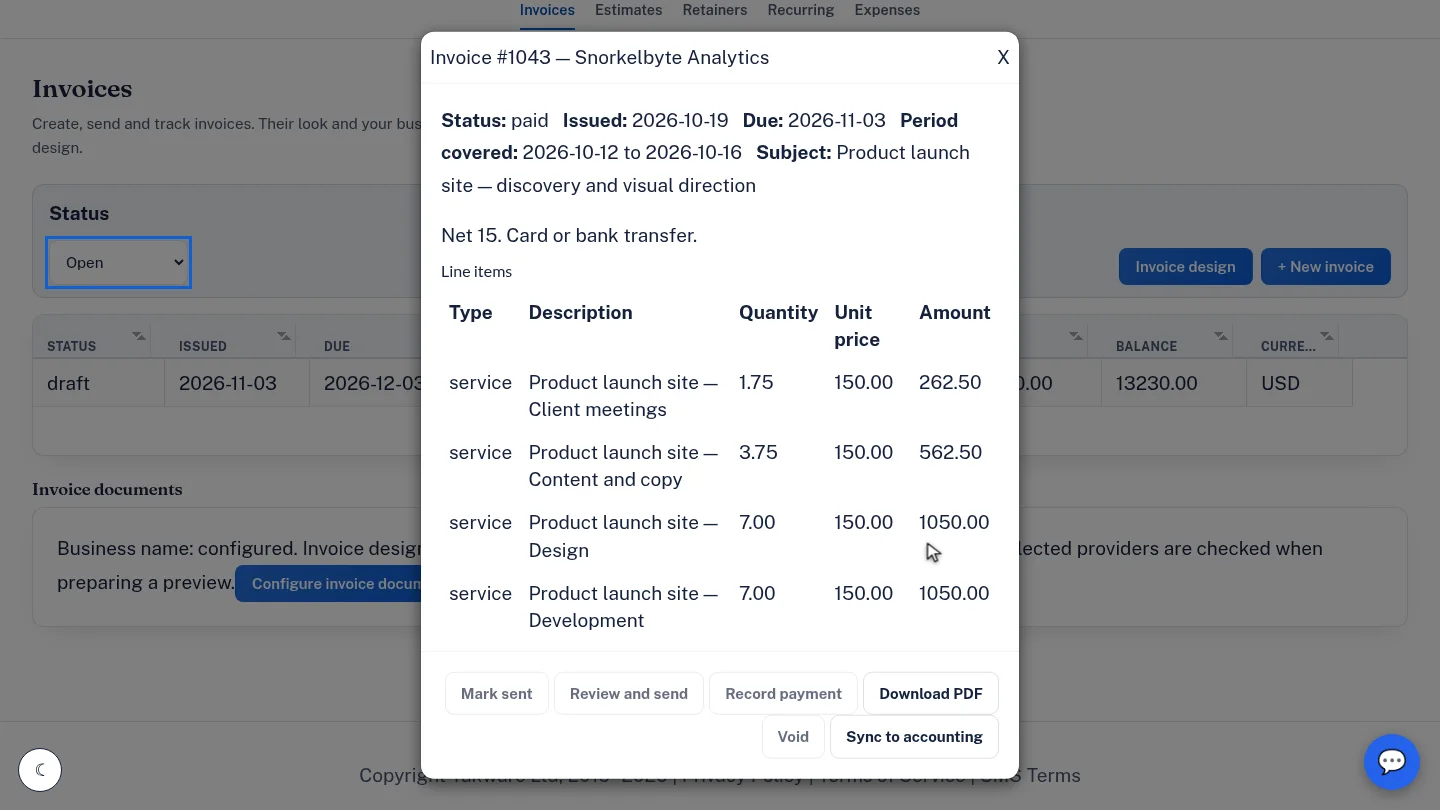
Select Record payment. The payment is added to the invoice, its status changes to paid, and it drops off your list of open invoices.
Steps
Open the invoice ▶ 0:05
Select Invoicing, then select the invoice.
Enter the payment ▶ 0:13
Select Record payment. Check Amount (USD): and Date:, choose the Method: and optionally add Notes:.
Save the payment ▶ 0:21
In the Record Payment dialog, select Record payment. The invoice status changes to paid.
Next steps
Updated 2026-10-26
mark invoice paid record payment bank transfer accounts receivable partial payment