
How to create an invoice from tracked time in YakTimer
At the end of a billing period, YakTimer turns the client's uninvoiced billable hours and expenses into invoice lines. Entries already on another invoice are skipped, so nothing is billed twice.
Before you start
- The admin or owner role
- Billable time on a project with a billable rate (see Set a project's billable rate)
Preview voice Narrated with a local preview voice; the final recording replaces it.
Transcript
Turn a month of tracked time into a client invoice, without retyping a single hour.
Invoicing has its own section in the top menu. Open it, then select New invoice.
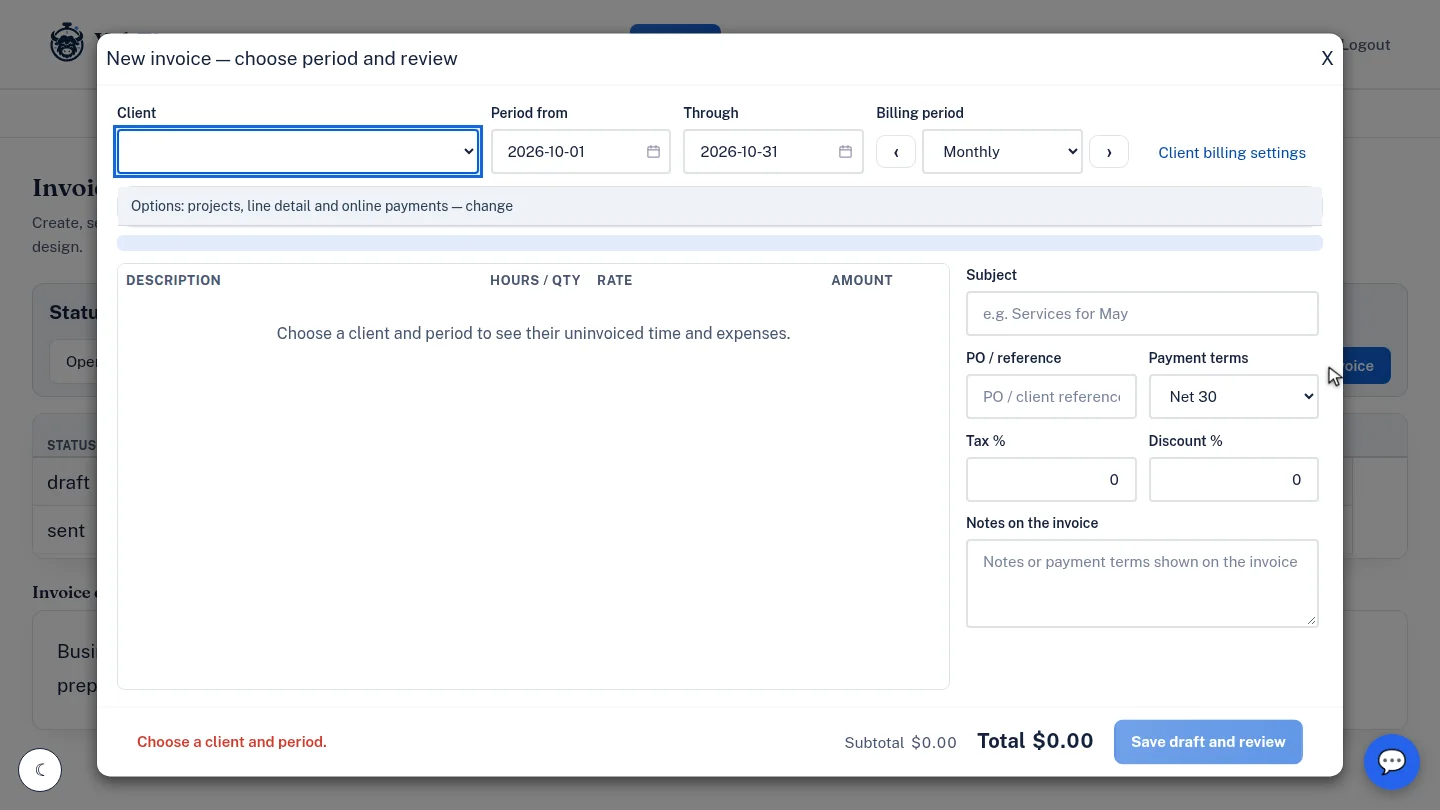
Choose the client, then the period the invoice covers, here October first to the thirty-first.
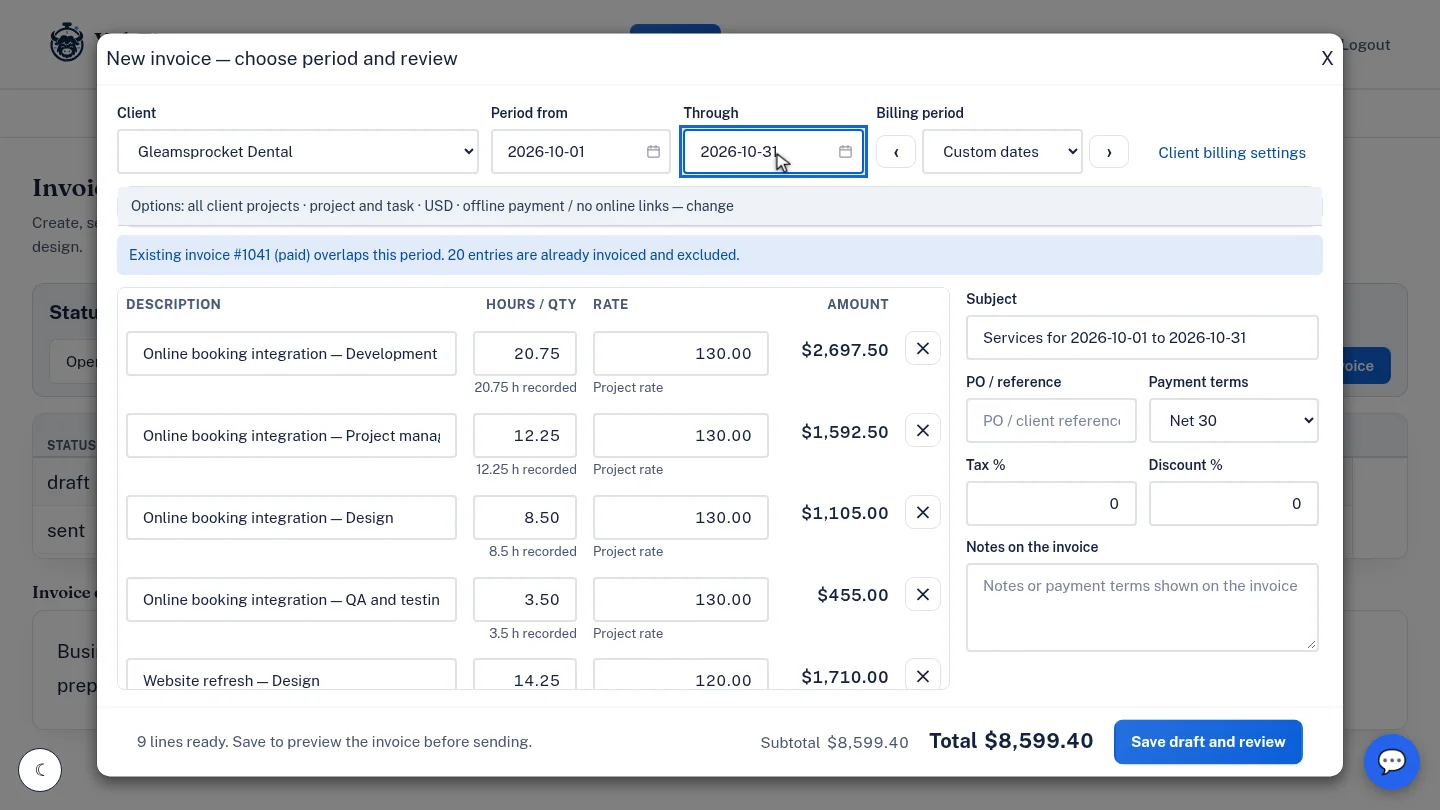
YakTimer adds a line for each project and task, plus pass-through expenses. Under each rate it says where the rate came from, and the total stays in view.
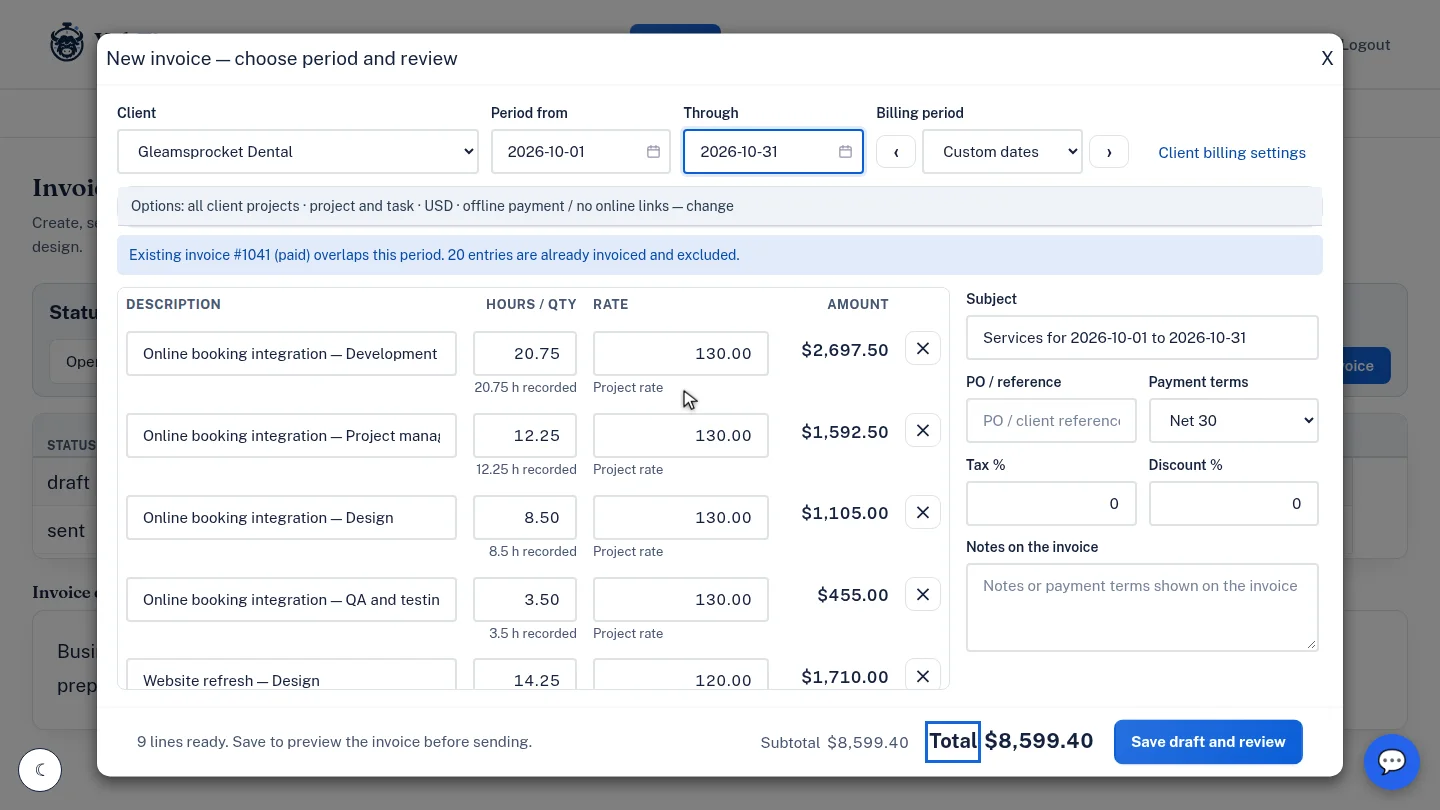
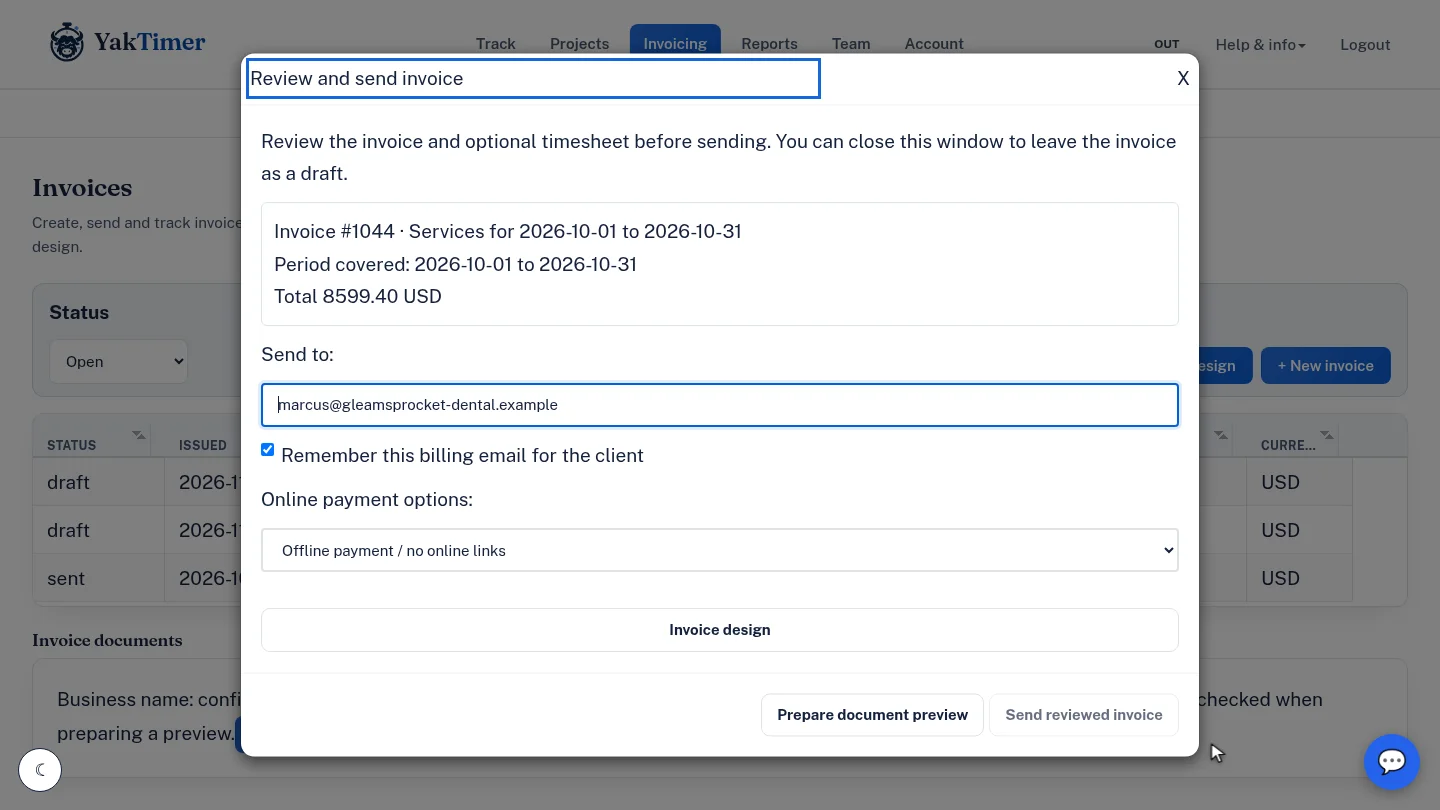
Select Save draft and review. The invoice is saved as a draft with its own number, and the review window opens, ready to send.
Steps
Start a new invoice ▶ 0:07
Select Invoicing, then + New invoice.
Choose the client and period ▶ 0:13
For Client, choose the client. Set Period from and Through, or step through billing periods with the arrows.
Review the lines and total ▶ 0:20
Review the lines. Under each Rate you can see where it came from, such as Project rate. A line marked No rate set needs a rate; tick the Use … for future … invoices box to remember it for the project. The Total stays at the bottom next to Save draft and review.
Save the draft ▶ 0:31
Select Save draft and review. The draft is saved and Review and send invoice opens with its number, period and total.
Next steps
Updated 2026-10-26
create invoice bill client invoice from timesheet billable hours invoice generate invoice