
How to run and export a time report in YakTimer
See where the hours went for one client over a period, who worked them and how much is billable. Then export the numbers as a spreadsheet to share or check against an invoice.
Before you start
- Tracked time in the period
Preview voice Narrated with a local preview voice; the final recording replaces it.
Transcript
Answer how many billable hours went into a client over the past week, and take the numbers with you.
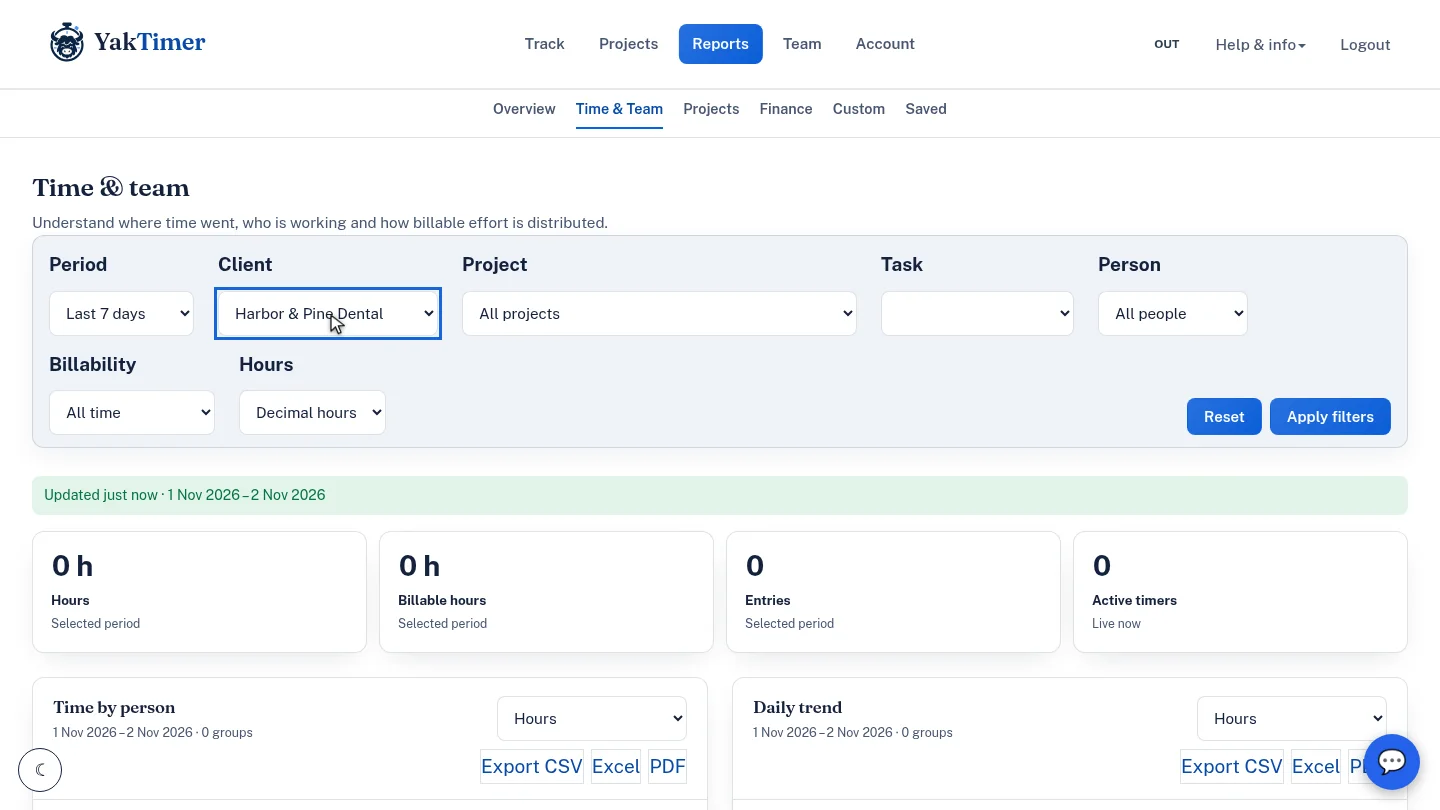
On Reports, under Time and Team, set the period to Last 7 days, and choose the client.
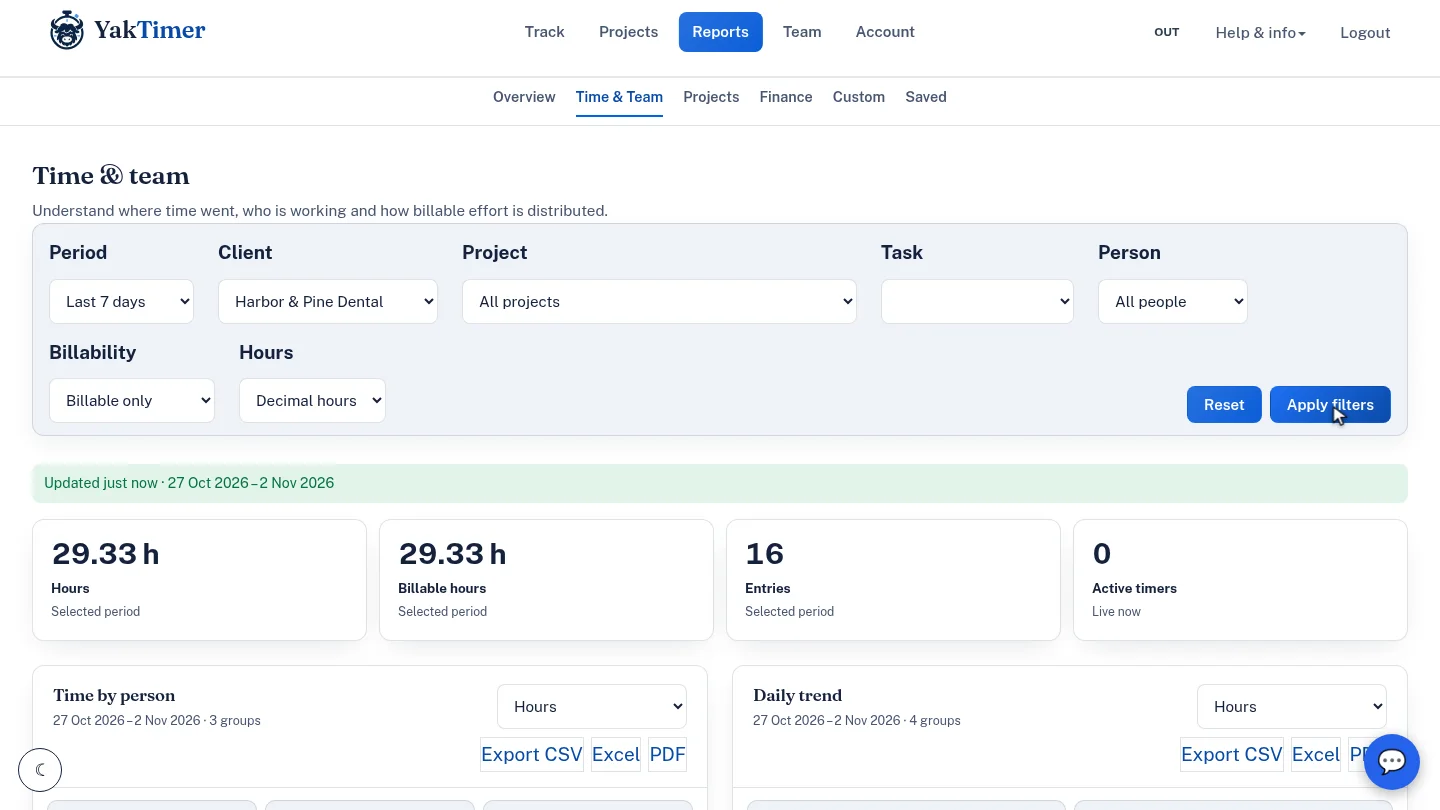
Set Billability to Billable only, then select Apply filters. The totals update for that client and week.
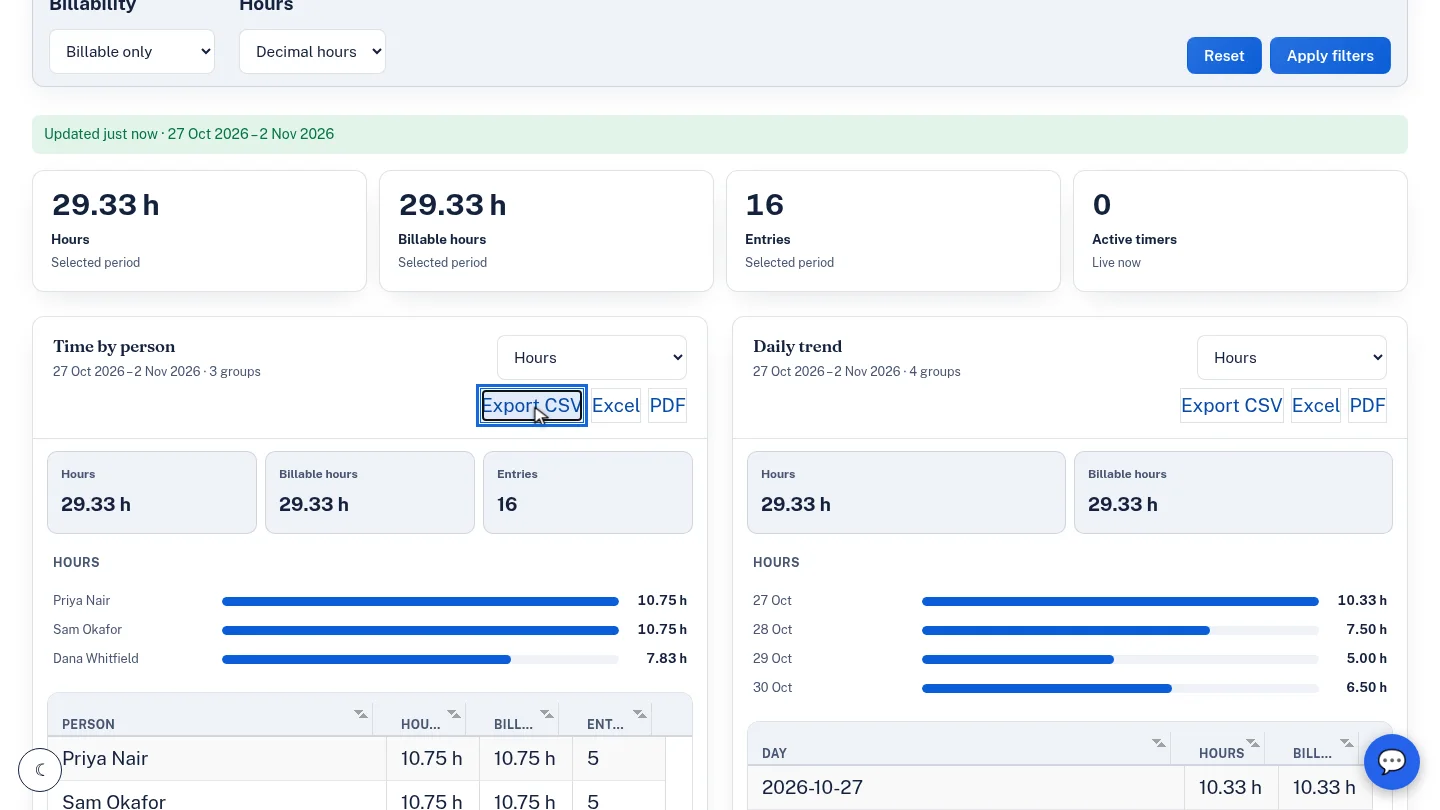
Under Time by person, select Export CSV to download the numbers as a spreadsheet. Excel and PDF are there too.
Steps
Choose the period and client ▶ 0:08
In Reports, on Time & Team, set Period to Last 7 days and choose a Client.
Show billable time ▶ 0:15
For Billability, choose Billable only, then select Apply filters.
Export it ▶ 0:22
In Time by person, select Export CSV. Excel and PDF are also available.
Next steps
Updated 2026-11-02
time report hours by client billable hours report export csv utilization