
How to record a billable expense in YakTimer
Software licences, stock images and travel you buy for a client should be paid back. Record the expense against the project and pass it through, and it's added to that client's next invoice.
Before you start
- The admin or owner role
- A project for the client
Preview voice Narrated with a local preview voice; the final recording replaces it.
Transcript
Record a cost you paid for a client, so it's added to their next invoice.
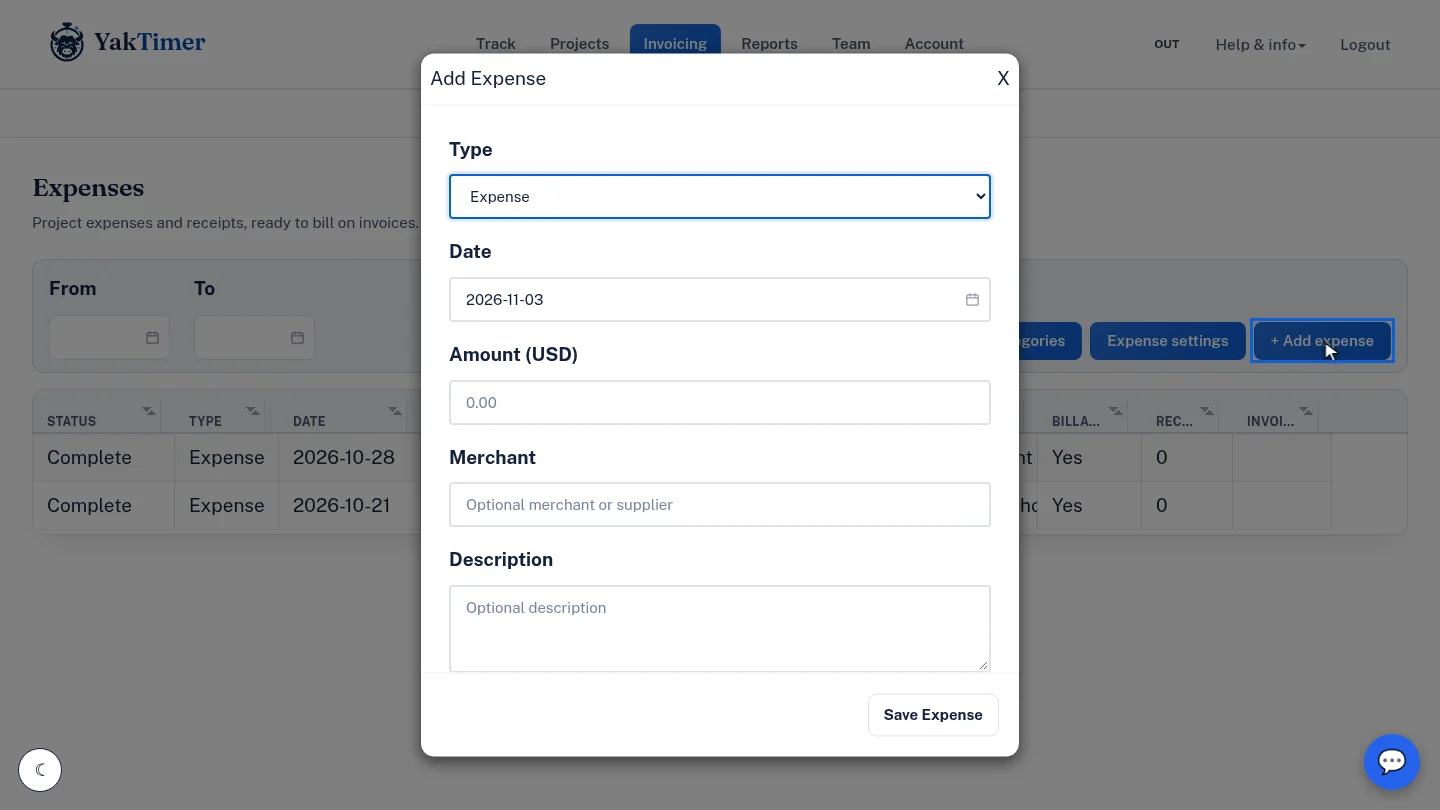
Expenses live in the Invoicing section. Open Expenses, then select Add expense.
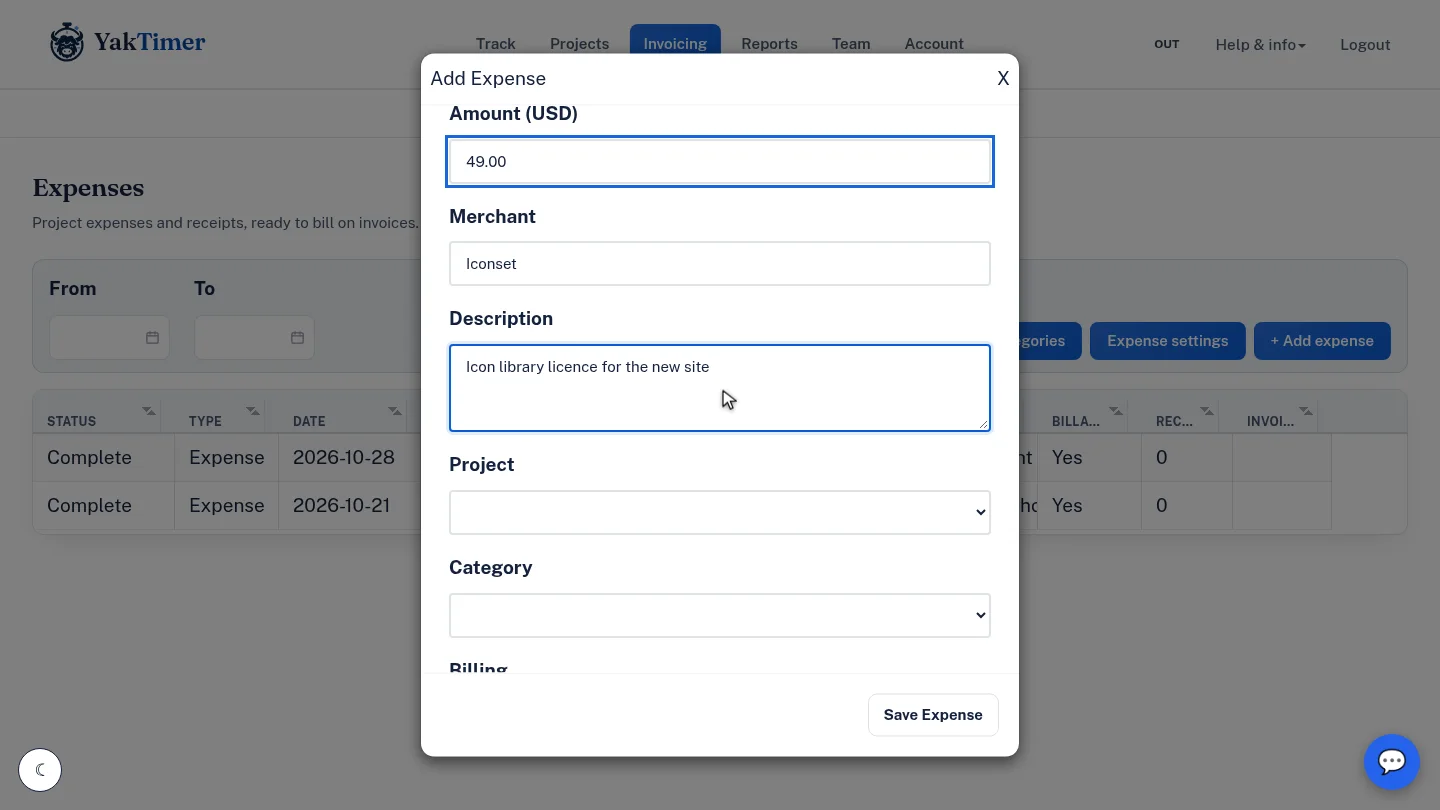
Enter the amount from the receipt, who you paid, and a short description your client will understand.
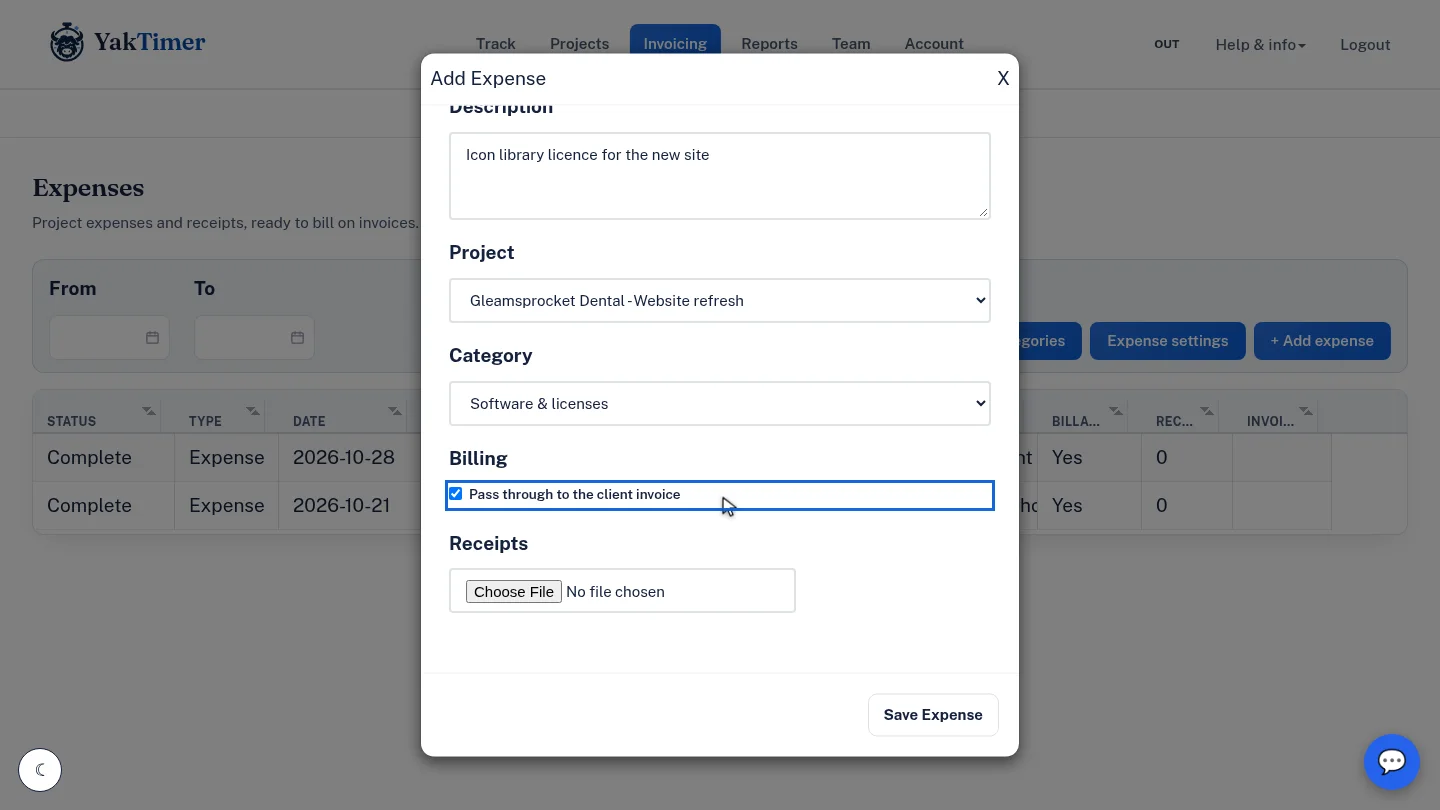
Choose the project and a category, then tick Pass through to the client invoice, so the cost is billed back.
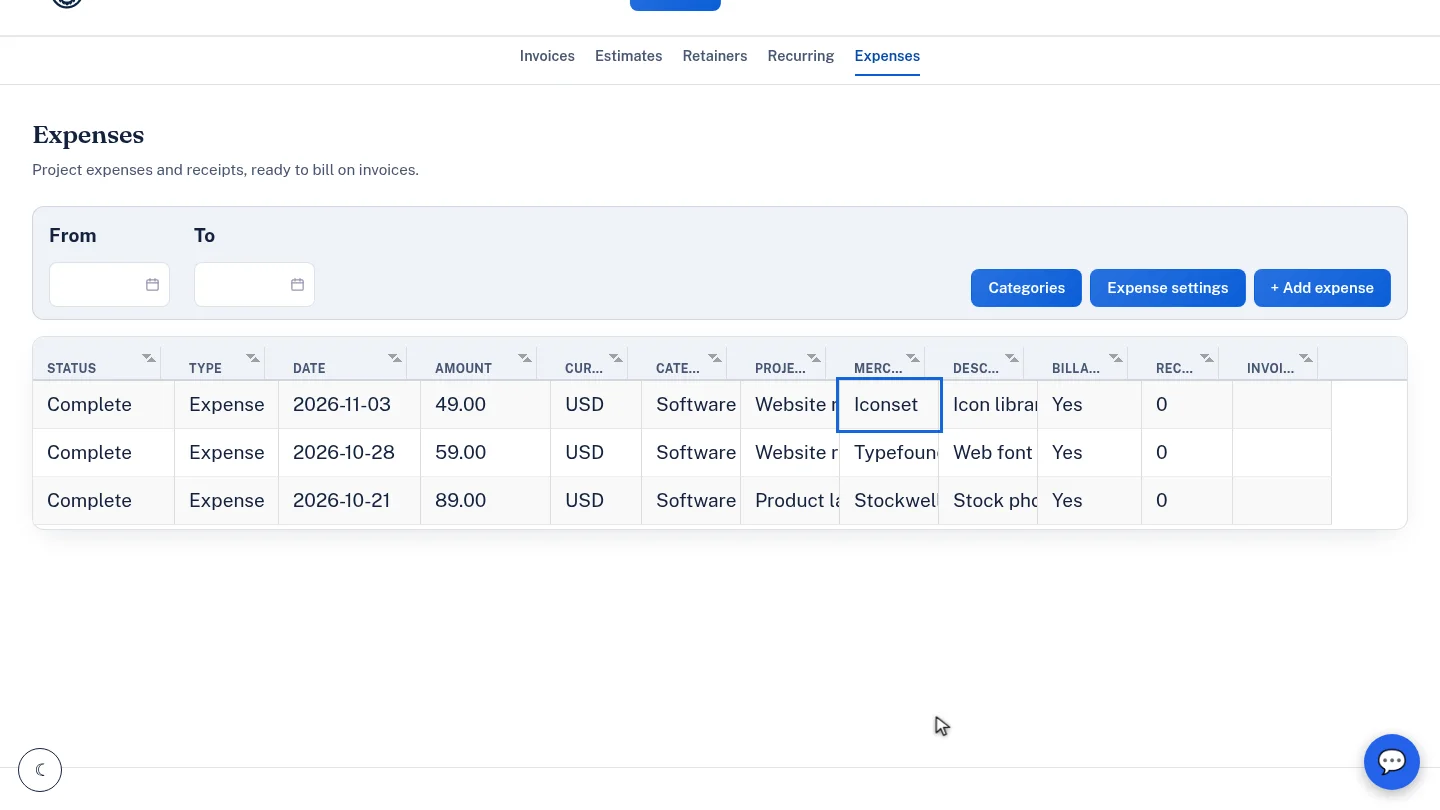
Select Save Expense. It joins the Expenses list, and will be added the next time you invoice Gleamsprocket.
Steps
Start a new expense ▶ 0:06
In Invoicing, select Expenses, then + Add expense.
Enter the amount and merchant ▶ 0:12
Enter the Amount (USD), the Merchant and a Description.
Bill it to the client ▶ 0:20
Choose the Project and Category, then select Pass through to the client invoice.
Save the expense ▶ 0:28
Select Save Expense. The expense appears in the list.
Next steps
Updated 2026-10-26
reimbursable expense billable expense pass-through cost receipt project costs