
How to create a billable task in YakTimer
Tasks describe the kind of work, such as design or meetings, and decide whether it's billable. Add a task once and attach it to the projects that need it, so reports and invoices split hours by type of work.
Before you start
- The manager, admin or owner role
- At least one project
Preview voice Narrated with a local preview voice; the final recording replaces it.
Transcript
Add a billable type of work, so time spent on it is ready to invoice.
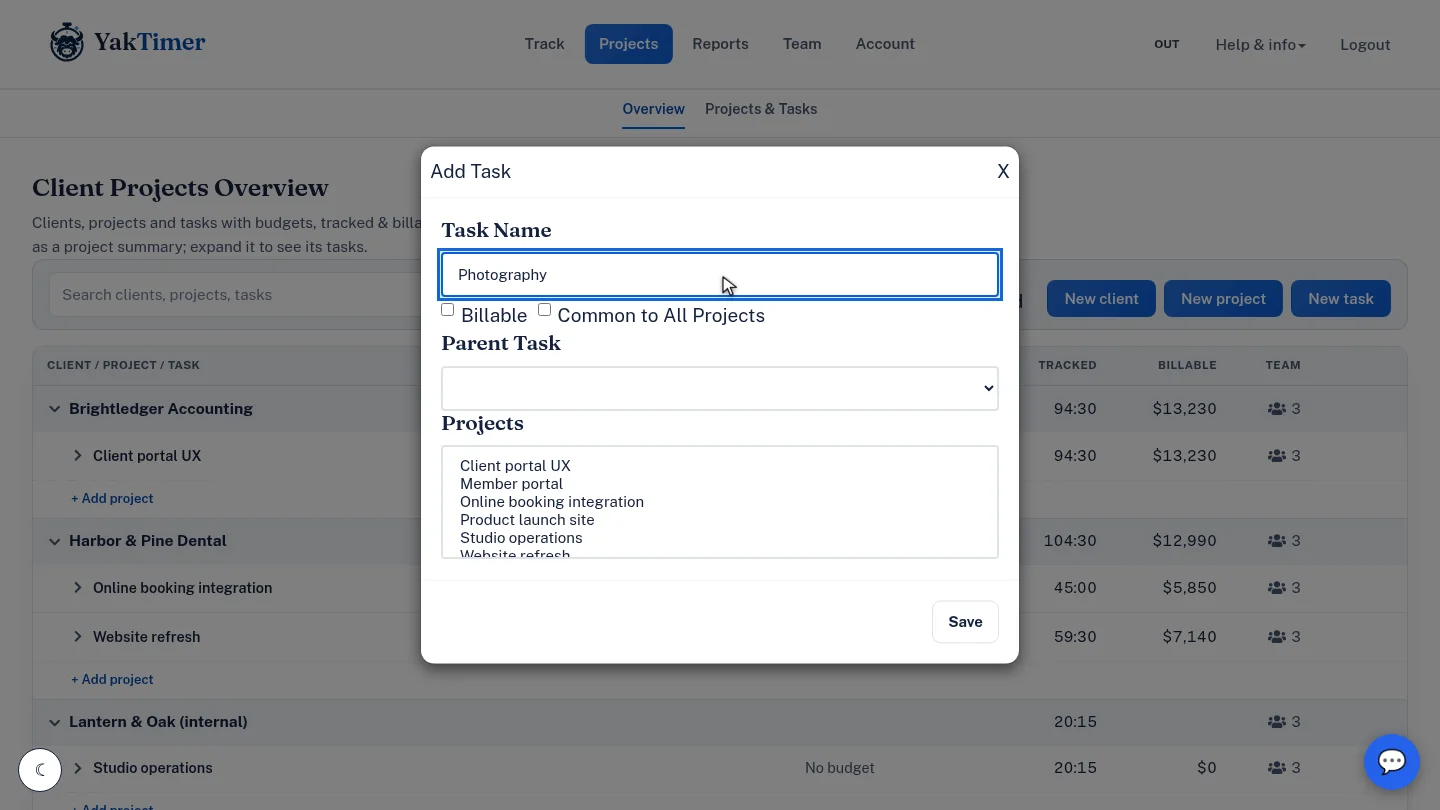
On the Projects overview, select New task and name the type of work.
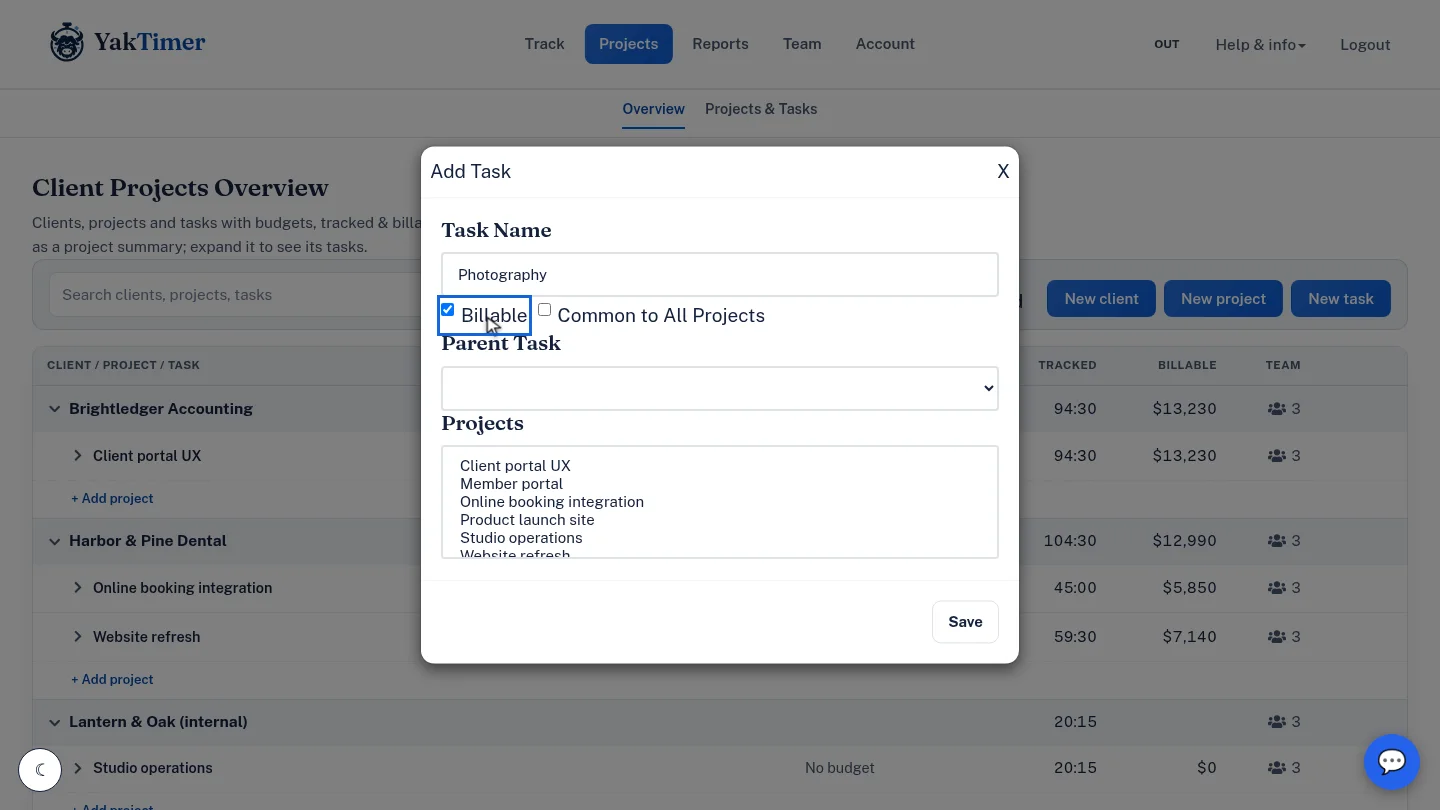
Tick Billable, so hours on this task count toward invoices.
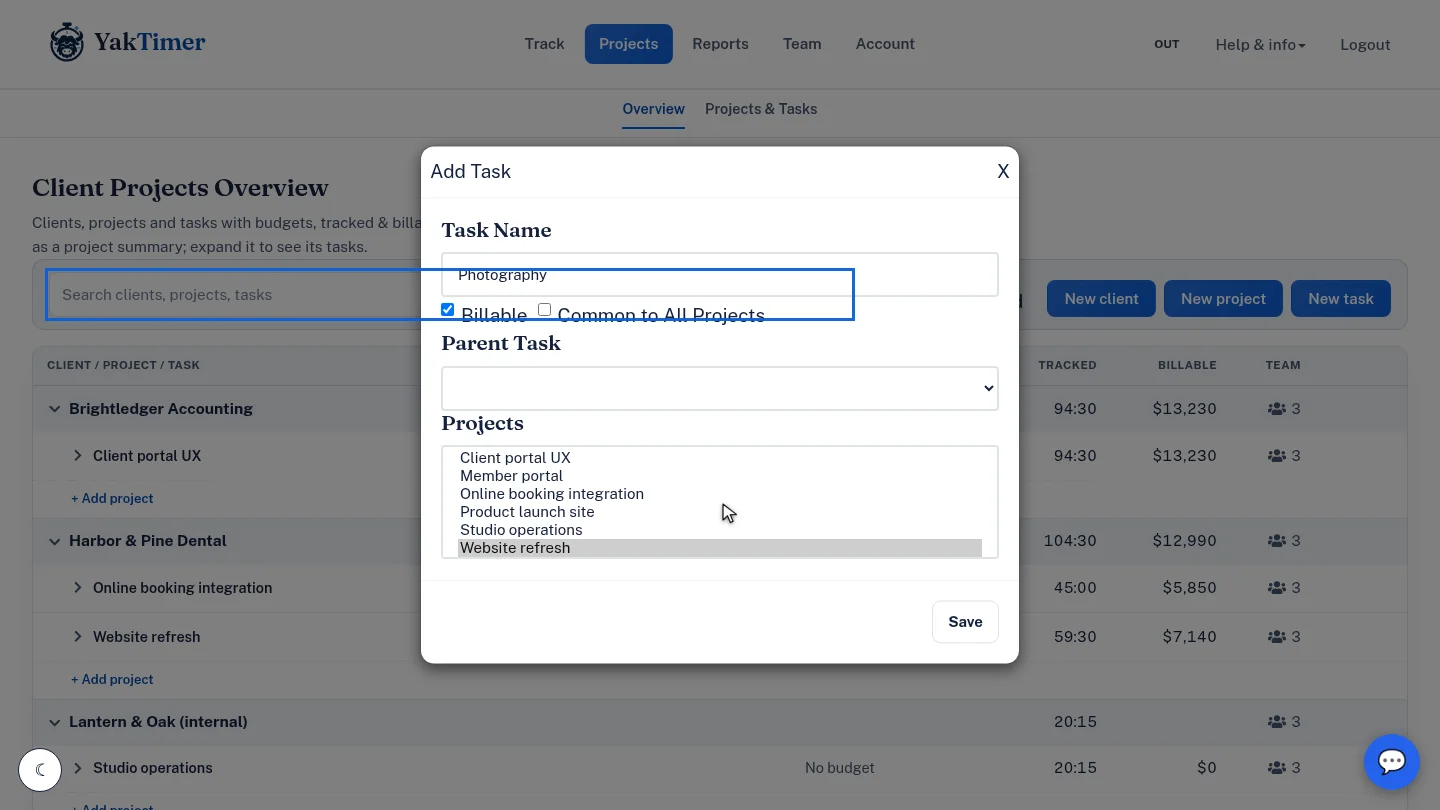
Under Projects, choose the projects the task belongs to, here Website refresh, or tick Common to All Projects.
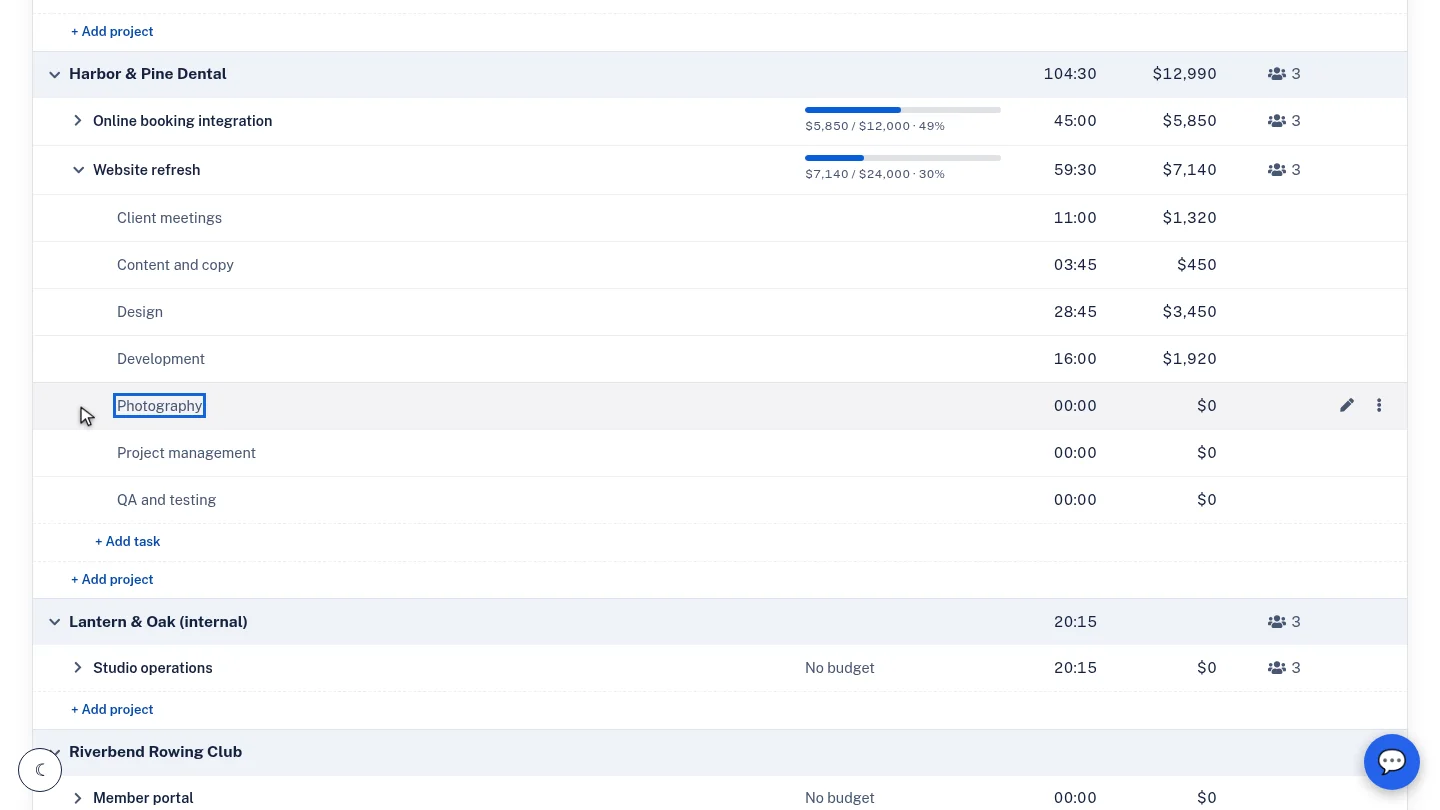
Select Save. Expand Website refresh to see Photography among its tasks. It's also in the Task list when anyone records time.
Steps
Name the task ▶ 0:06
In Projects, on Overview, select New task, then enter the Task Name.
Make it billable ▶ 0:11
Select Billable. Leave it cleared for internal work you don't charge for.
Choose the projects ▶ 0:16
Under Projects, select the projects the task belongs to, or select Common to All Projects.
Save the task ▶ 0:24
Select Save. To see the task, select the arrow next to the project on the overview.
Next steps
Updated 2026-10-26
task types work types billable task activity service item