
How to create a client in YakTimer
Every project, hour and invoice in YakTimer belongs to a client. Add the client first, so time you track for them adds up in one place and lands on the right invoice.
Before you start
- A YakTimer account with the manager, admin or owner role
Preview voice Narrated with a local preview voice; the final recording replaces it.
Transcript
Add a client so their projects, hours and invoices stay together in YakTimer.
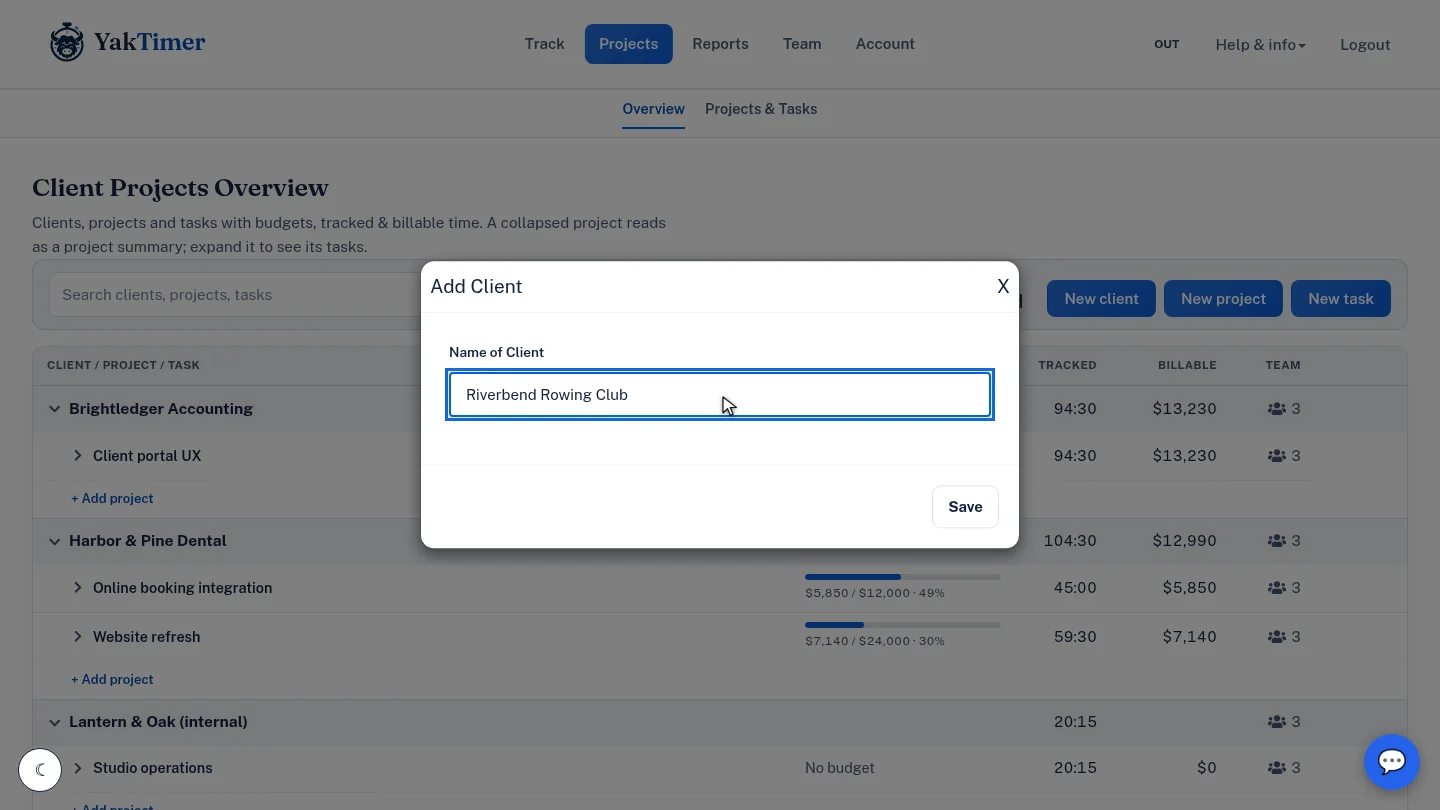
On the Projects overview, select New client, and type the client's name the way it should appear on invoices.
Select Save. Puddleoar Rowing Club joins the overview, ready for its first project.
Steps
Name the client ▶ 0:06
In Projects, on Overview, select New client, then enter the Name of Client.
Save the client ▶ 0:15
Select Save. The client appears in Client Projects Overview.
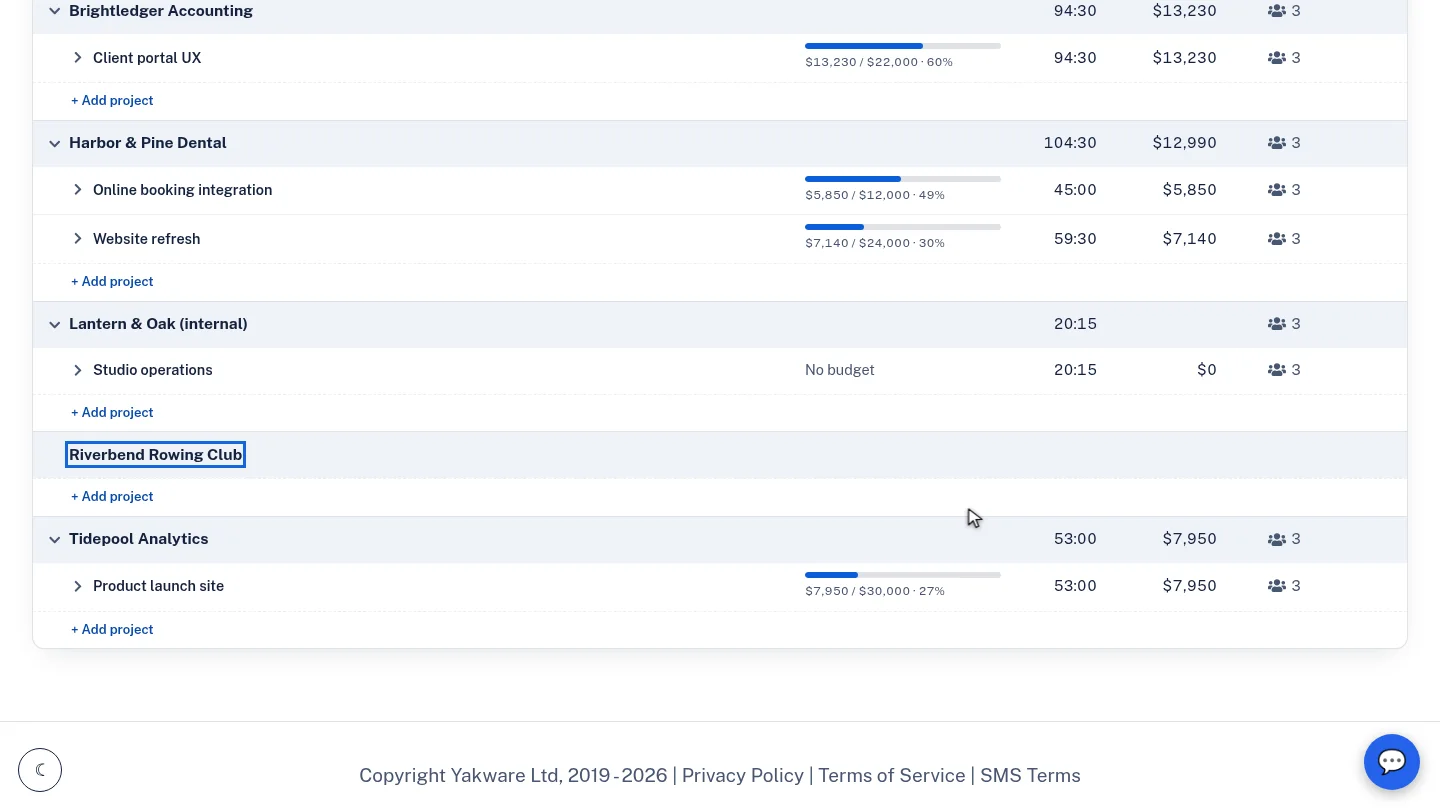
ResultThe client appears on Client Projects Overview, ready for its first project.
Next steps
Updated 2026-10-26
add customer new client client list customer record