
How to set a project's billable rate in YakTimer
YakTimer prices billable hours with the project's hourly rate. Set the rate you agreed with the client, and the overview and new invoices use it for that project's time.
Before you start
- The manager, admin or owner role
- A project (see Create a project)
Preview voice Narrated with a local preview voice; the final recording replaces it.
Transcript
Charge the right hourly rate for a project, so its billable time is priced correctly on invoices.
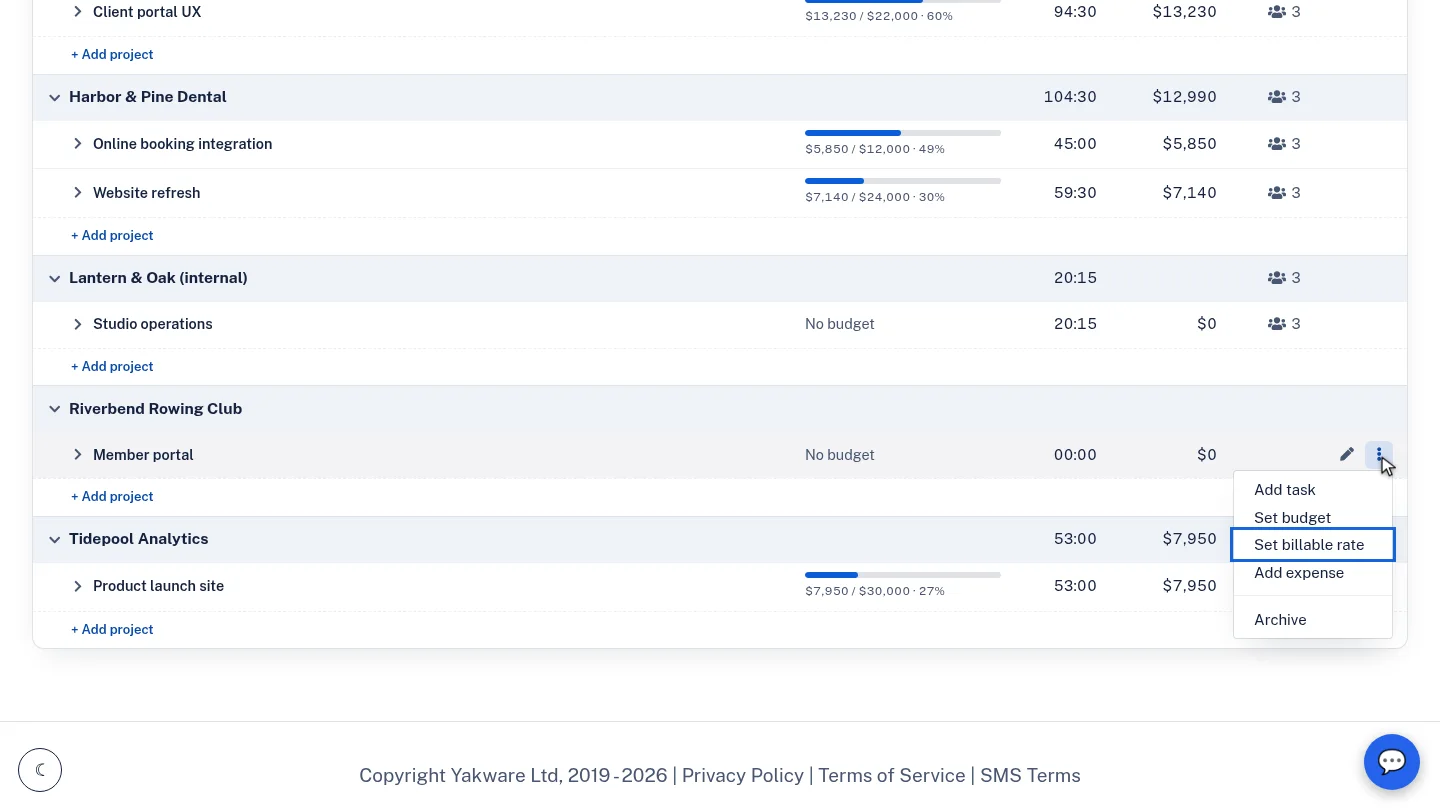
On the Projects overview, find the project and open its More menu, the three dots at the end of the row.
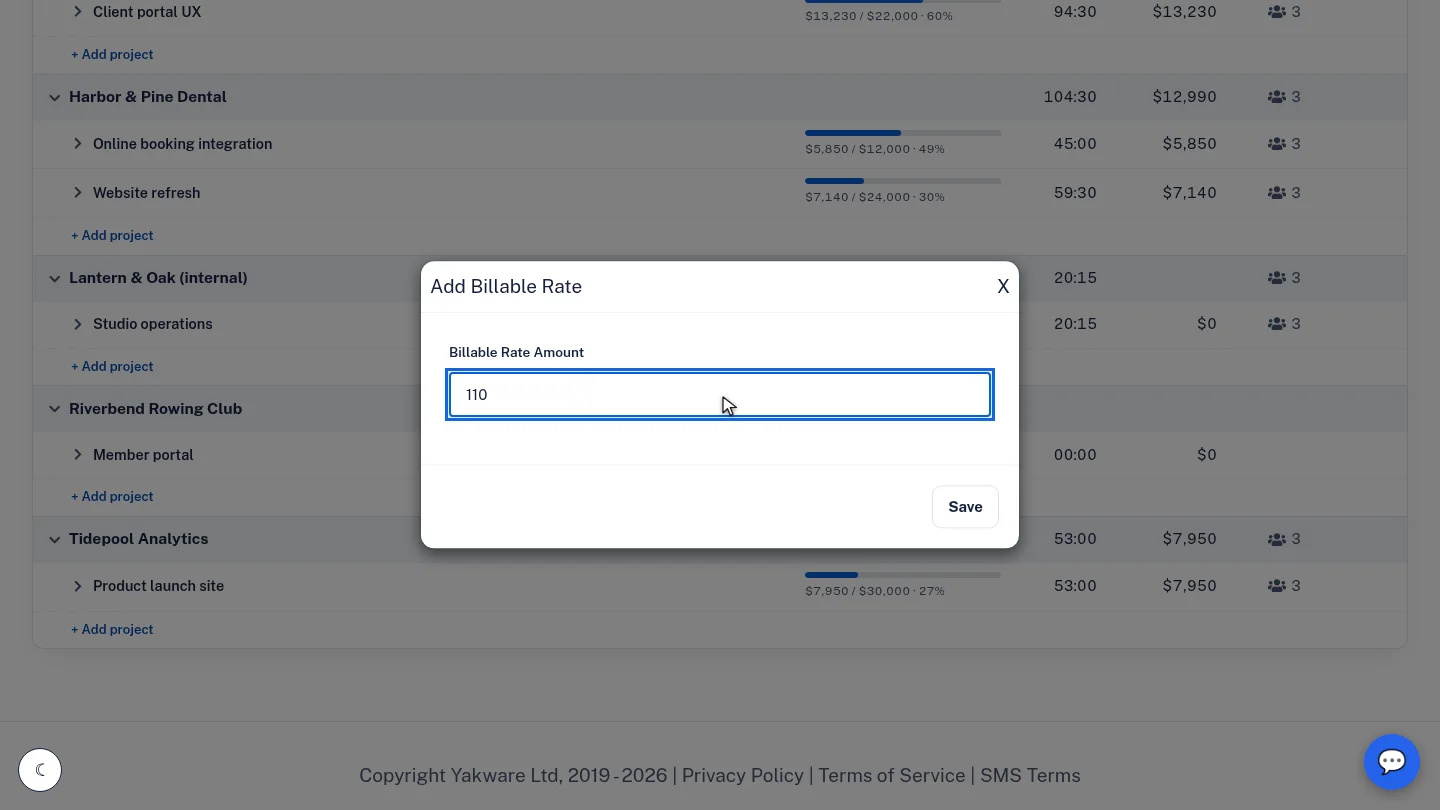
Choose Set billable rate, and enter the hourly rate, here one hundred and ten dollars.
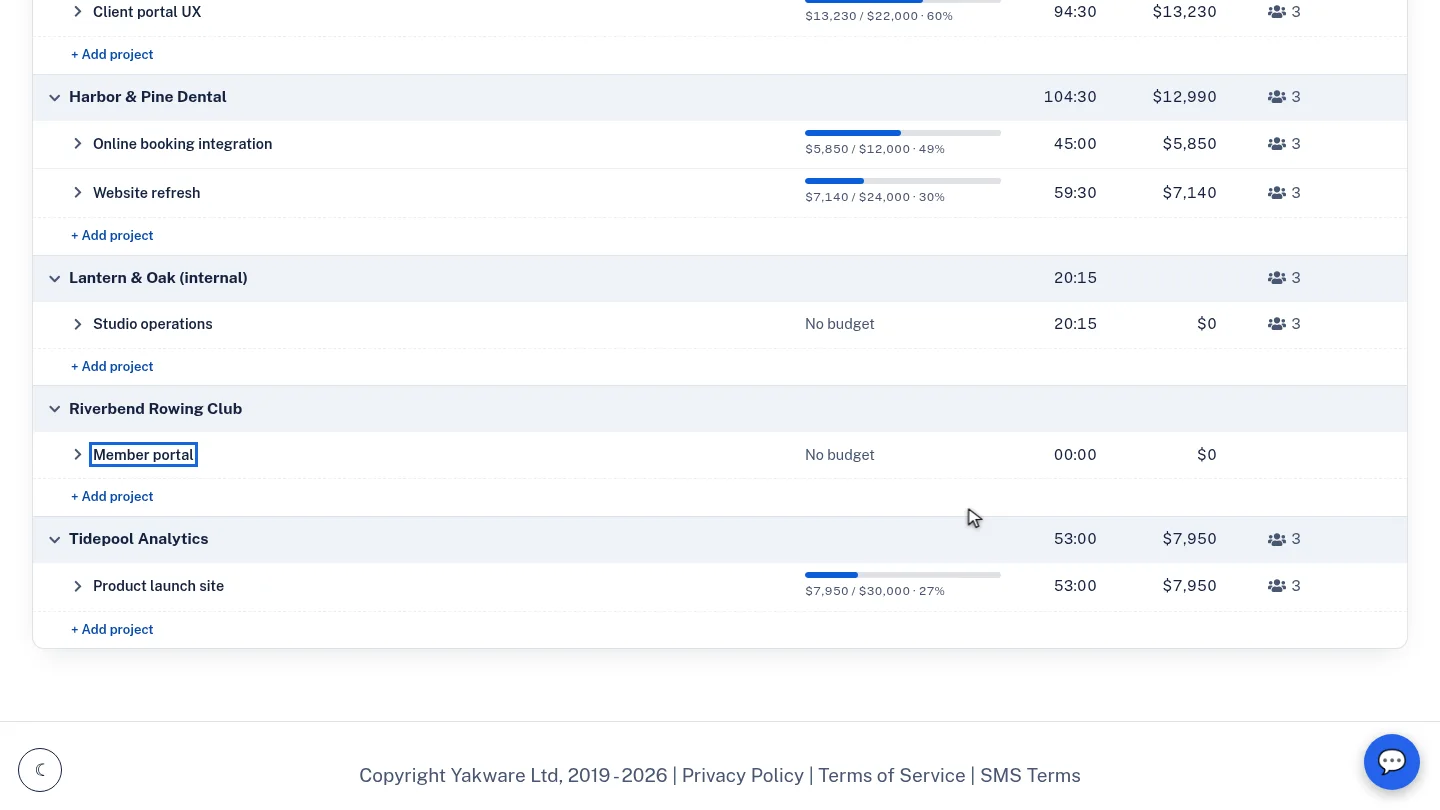
Select Save. From now on, billable hours on Member portal are valued at one hundred and ten dollars an hour.
Steps
Open the project's menu ▶ 0:08
In Projects, on Overview, find the project and select More (⋮) on its row.
Enter the hourly rate ▶ 0:16
Select Set billable rate, then enter the hourly amount in Billable Rate Amount.
Save the rate ▶ 0:22
Select Save. New invoices for this project use the rate.
Next steps
Updated 2026-10-26
hourly rate bill rate project rate charge rate pricing