
How to approve a timesheet in YakTimer
Approving a teammate's week confirms their hours are right before you bill or pay for them. Approved weeks are locked, so nobody changes the hours afterwards by accident.
Before you start
- The manager, admin or owner role
- A teammate has selected Submit for approval on their Time Sheet for the week
Preview voice Narrated with a local preview voice; the final recording replaces it.
Transcript
Check a teammate's week and approve it, so their hours are locked for billing and payroll.
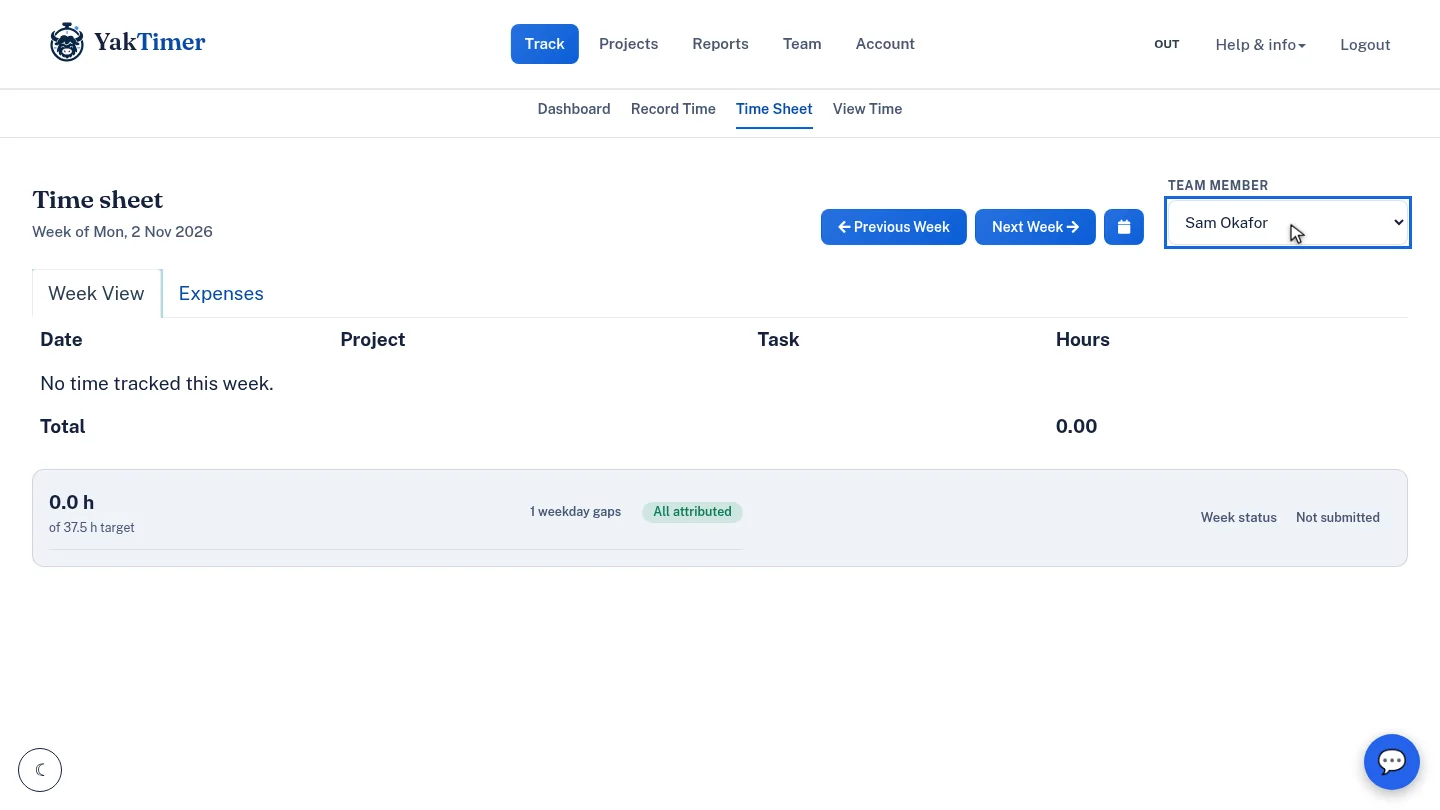
On Time Sheet, under Team member, choose whose week to review, here Sam Pixelby.
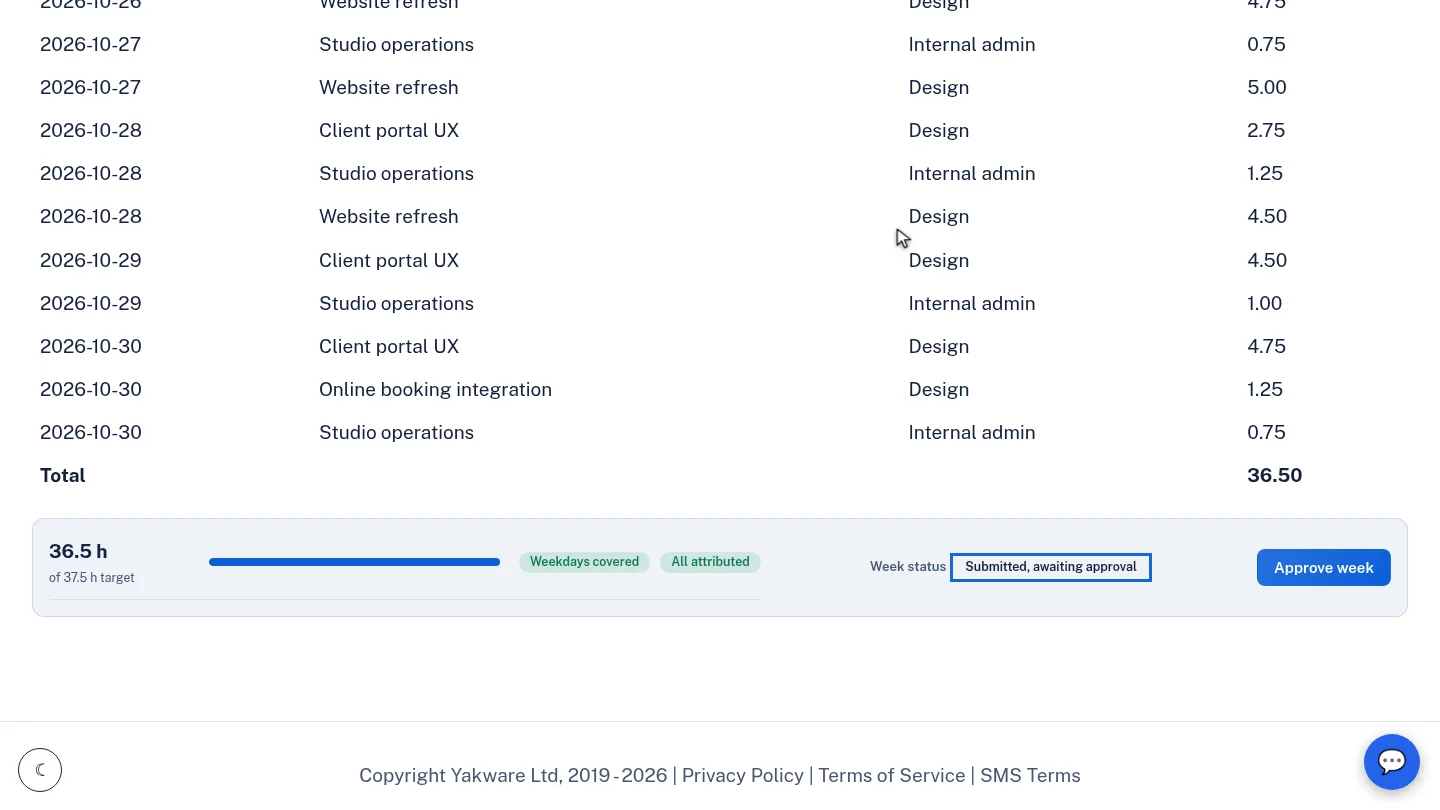
Go to the week they submitted. Its status reads Submitted, awaiting approval, and each day's hours are listed by project and task.
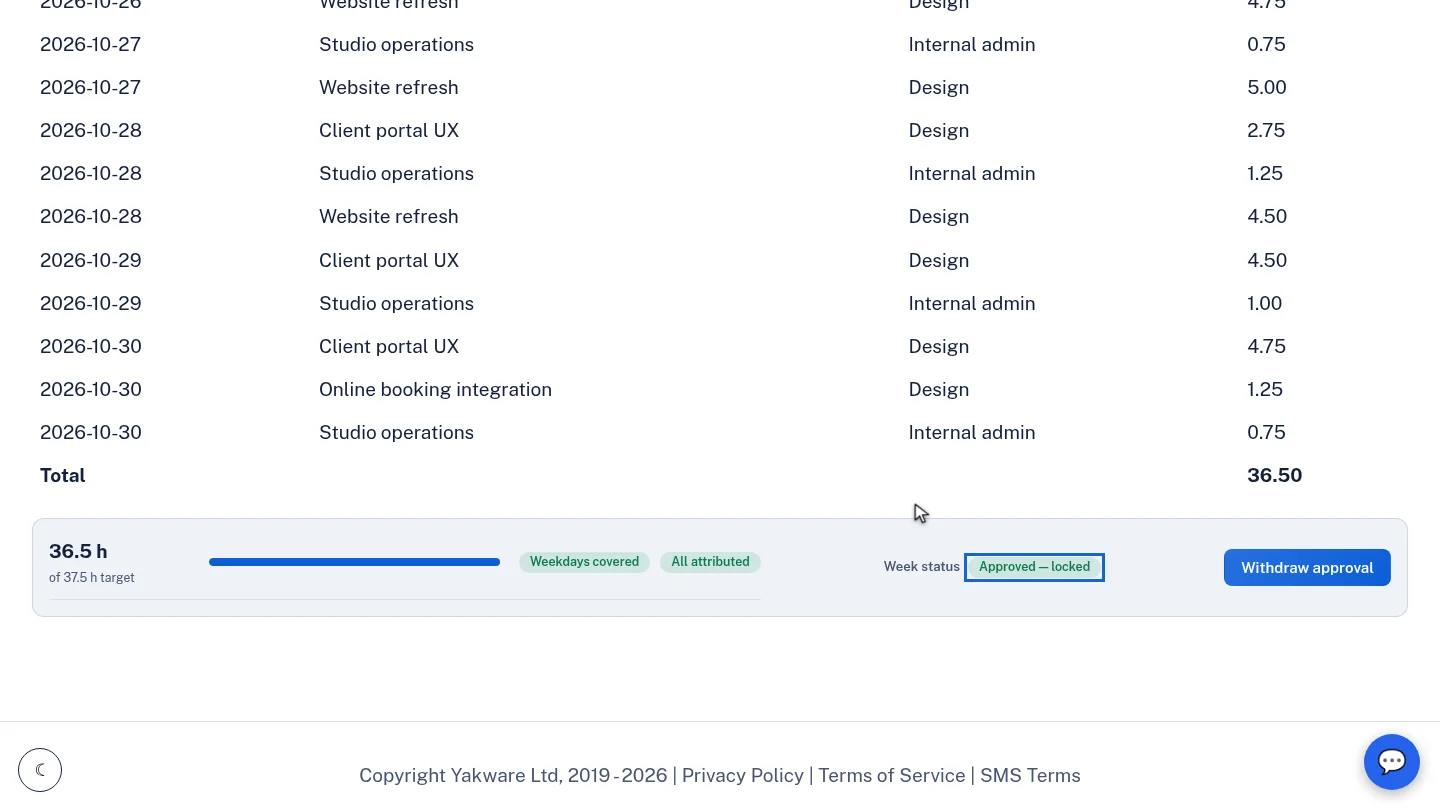
Select Approve week. The status changes to Approved, locked, and the hours can no longer be edited.
Steps
Choose the teammate ▶ 0:07
In Track, on Time Sheet, choose a name under Team member.
Open the submitted week ▶ 0:13
Select Previous Week until Week status shows Submitted, awaiting approval, then review the hours.
Approve the week ▶ 0:23
Select Approve week. Week status changes to Approved — locked.
Next steps
Updated 2026-10-26
timesheet approval approve hours lock timesheet weekly timesheet submit timesheet