
How to change your YakTimer plan
Move to Business for profitability and capacity reports and accounting sync, or change plan as your team grows. The change applies straight away, and the difference is prorated on your next bill.
Before you start
- The admin or owner role
- A paid subscription
Preview voice Narrated with a local preview voice; the final recording replaces it.
Transcript
Switch your account to another plan, with the price difference prorated.
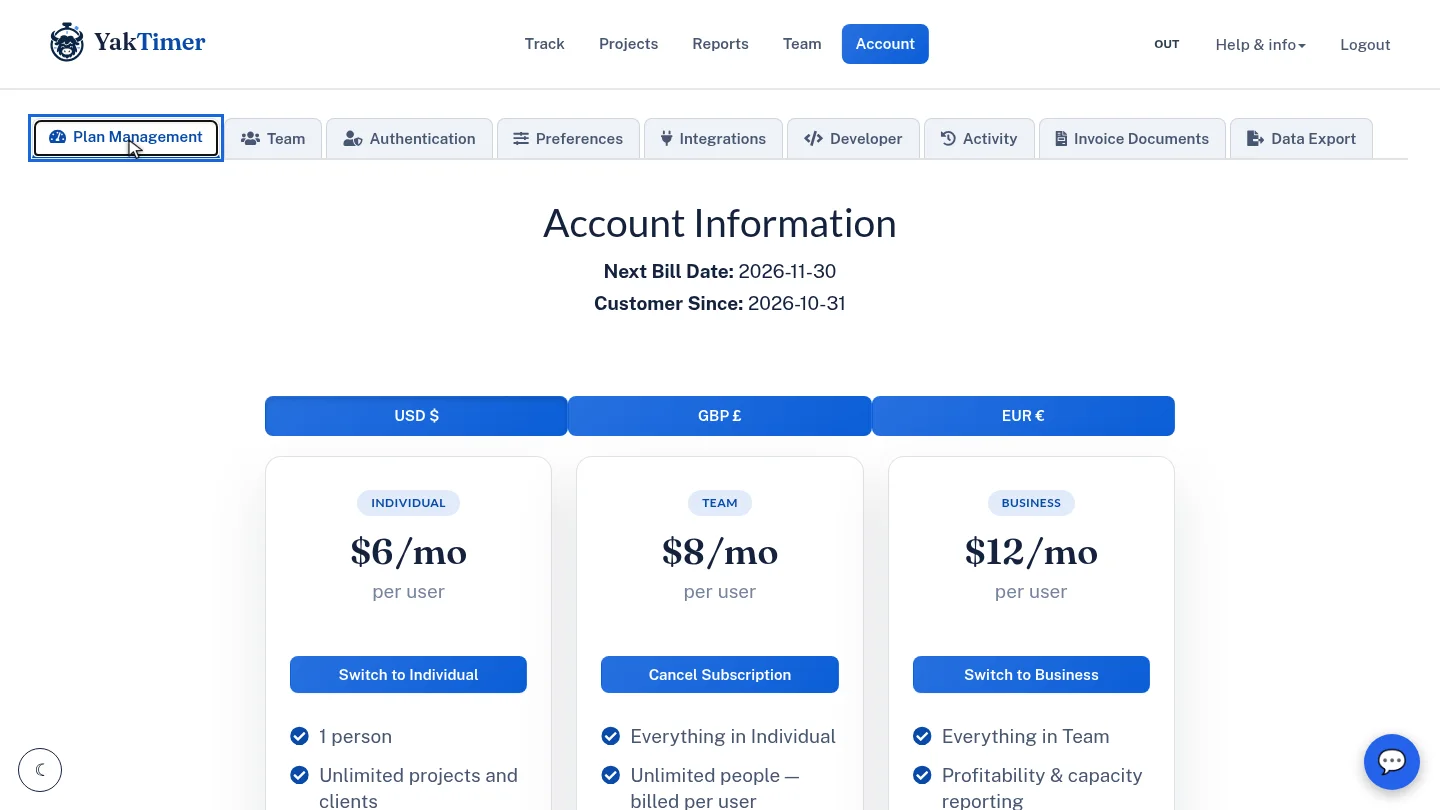
Under Account, open Plan Management to see your current plan and the others available.
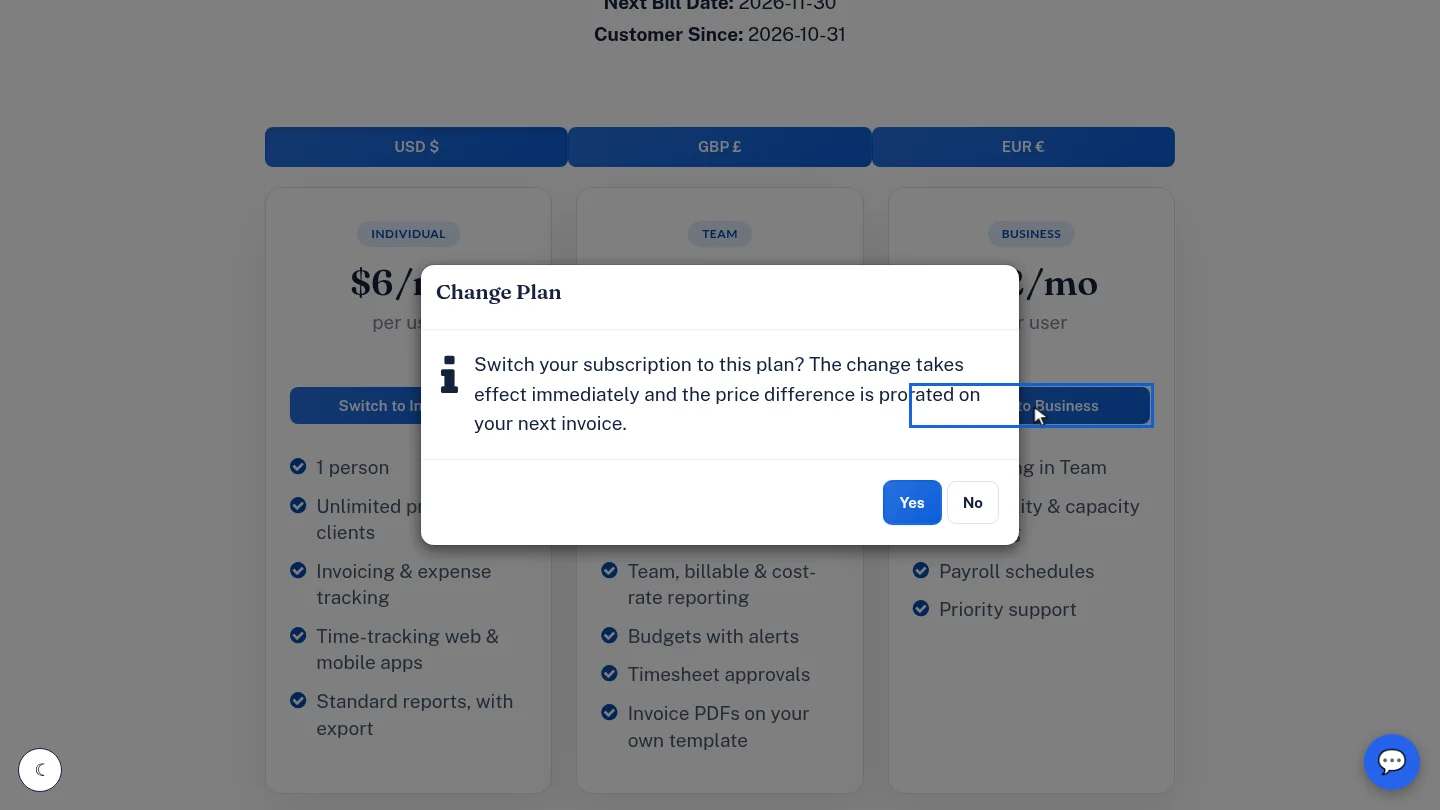
Under the plan you want, select Switch to that plan, for example Switch to Business.
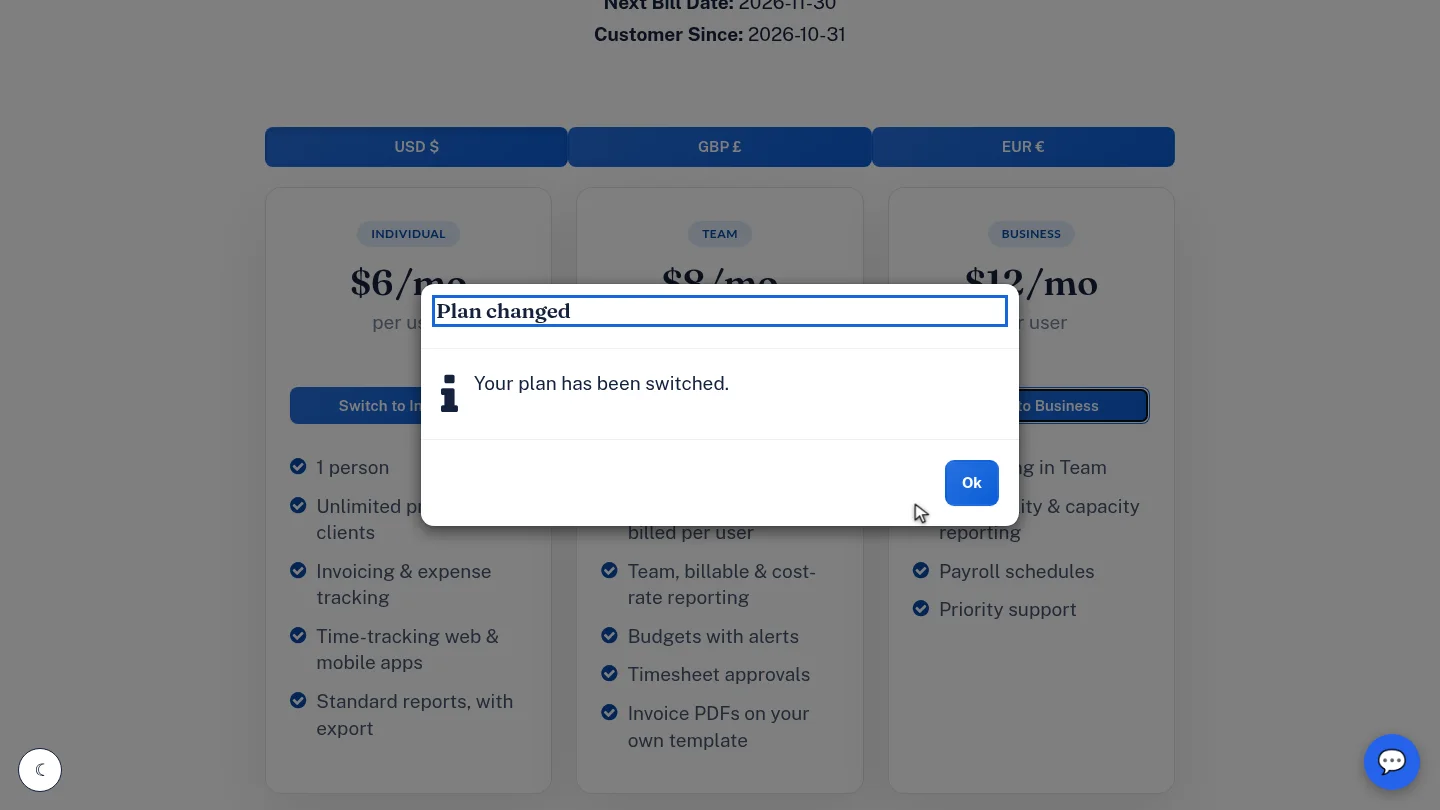
Read the summary of the change, and select Yes. Plan changed confirms it.
Steps
Open Plan Management ▶ 0:06
In Account, select Plan Management.
Choose the new plan ▶ 0:12
Under the plan you want, select Switch to that plan, for example Switch to Business.
Confirm the change ▶ 0:19
Review the Change Plan message, then select Yes. Plan changed appears.
Updated 2026-11-04
upgrade plan downgrade change subscription billing pricing tier